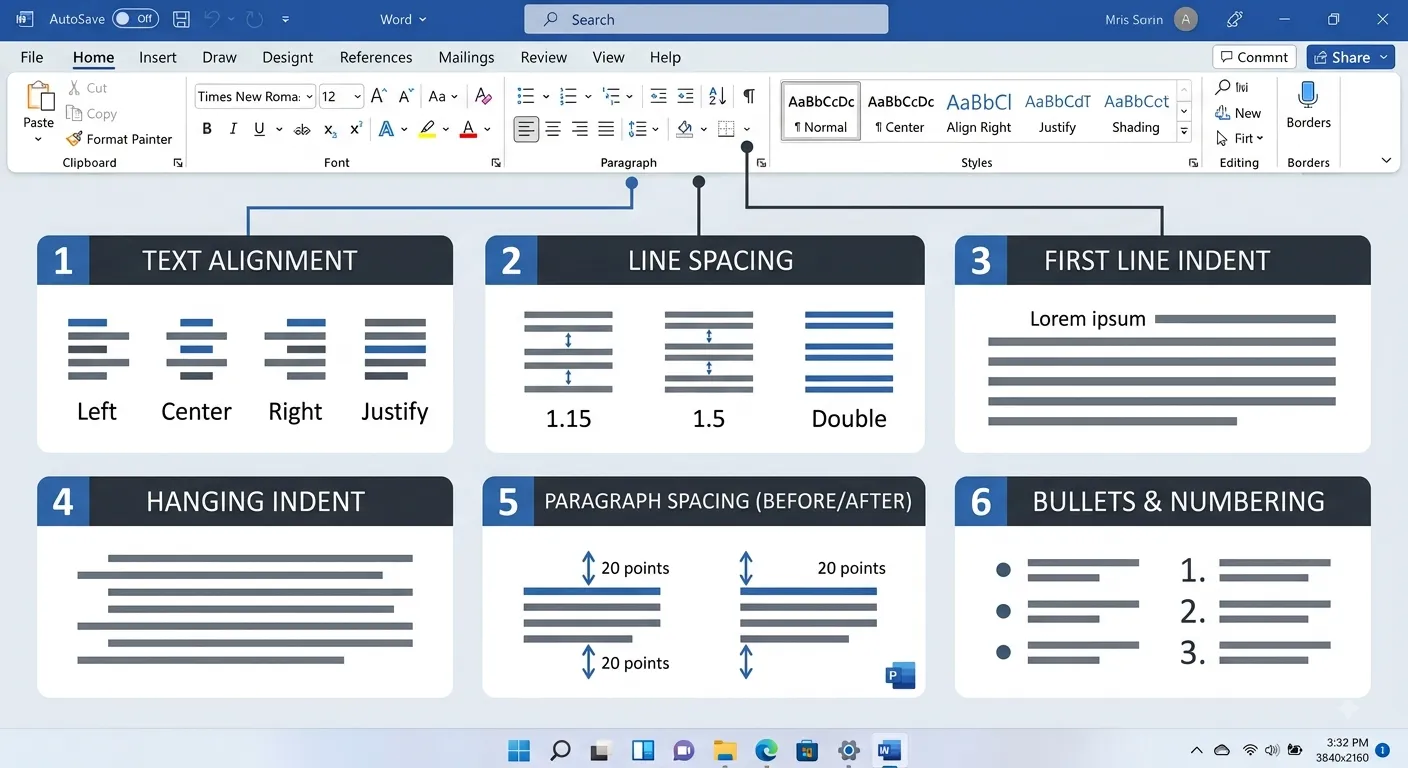
Paragraph Formatting
Paragraph formatting is one of the most important parts of creating a professional Microsoft Word document. It controls how paragraphs are positioned, spaced and displayed on a page. By using paragraph formatting tools, you can make your document easier to read, better organized and more visually attractive.
What is Paragraph Formatting?
Paragraph formatting refers to changing the appearance and layout of an entire paragraph. Unlike character formatting, which changes individual characters or words, paragraph formatting affects the complete paragraph.
Paragraph formatting includes options such as alignment, indentation, line spacing, paragraph spacing, bullets, numbering, borders and shading.
Paragraph Formatting
        │
        ├── Alignment
        │
        ├── Indentation
        │
        ├── Line Spacing
        │
        ├── Paragraph Spacing
        │
        ├── Bullets
        │
        ├── Numbering
        │
        ├── Borders
        │
        └── Shading
Main Paragraph Formatting Options
| Option | Purpose |
|---|---|
| Alignment | Controls the horizontal position of paragraph text. |
| Indentation | Moves a paragraph inward from the page margins. |
| Line Spacing | Controls the vertical space between lines in a paragraph. |
| Paragraph Spacing | Controls the space before and after paragraphs. |
| Bullets | Creates unordered lists. |
| Numbering | Creates ordered or numbered lists. |
| Borders | Adds borders around paragraphs. |
| Shading | Adds a background color to a paragraph. |
Paragraph Alignment
Paragraph alignment determines how text is positioned between the left and right margins of a document. Microsoft Word provides four main paragraph alignment options.
Align Left
Text is aligned with the left margin. This is the most commonly used alignment for normal paragraphs.
Center
Text is positioned in the center of the page. It is commonly used for titles and headings.
Align Right
Text is aligned with the right margin. It can be useful for dates or specific document elements.
Justify
Text is aligned evenly along both the left and right margins, creating a clean block of text.
Alignment Shortcuts
| Shortcut | Alignment |
|---|---|
| Ctrl + L | Align Left |
| Ctrl + E | Center |
| Ctrl + R | Align Right |
| Ctrl + J | Justify |
How to Change Paragraph Alignment
Select the paragraph
        ↓
Open the Home tab
        ↓
Find the Paragraph group
        ↓
Choose an alignment
        ↓
The paragraph is reformatted
Select or place the cursor
inside the paragraph.

Press:

Ctrl + L  →  Left
Ctrl + E  →  Center
Ctrl + R  →  Right
Ctrl + J  →  Justify
Paragraph Indentation
Indentation controls the distance between a paragraph and the left or right margin. It is useful for creating structured documents and making certain paragraphs visually distinct.
| Indent Type | Description |
|---|---|
| Left Indent | Moves the entire paragraph away from the left margin. |
| Right Indent | Moves the entire paragraph away from the right margin. |
| First Line Indent | Moves only the first line of a paragraph inward. |
| Hanging Indent | Keeps the first line at the margin while subsequent lines are indented. |
First Line Indent
A first-line indent moves only the first line of a paragraph inward. It is commonly used in books, reports and formal writing.
    Microsoft Word is a powerful
word-processing application used
to create professional documents.
It provides many tools for editing,
formatting and reviewing content.
Hanging Indent
A hanging indent places the first line at the normal margin while the remaining lines of the paragraph are indented. It is frequently used in bibliographies, references and lists.
Microsoft Corporation. Microsoft Word
User Guide and Documentation. 2026.

PBA Institute. Microsoft Word Learning
Resources and Practical Tutorials.
Using the Ruler for Indentation
The horizontal ruler in Microsoft Word provides an easy way to control paragraph indentation. The markers on the ruler can be dragged to adjust the paragraph position.
        First Line Indent
              ↓
              ▼
──────────────┬────────────────
              │
              │  Left Indent
              ▼
              ▼
              │
              │
──────────────┴────────────────
                         ▲
                         │
                   Right Indent
Line Spacing
Line spacing determines the amount of vertical space between lines of text within a paragraph. Proper line spacing improves readability and makes documents look more professional.
| Spacing Option | Description |
|---|---|
| Single | Uses normal single-line spacing. |
| 1.15 | Provides slightly more space than single spacing. |
| 1.5 Lines | Provides one-and-a-half times the normal line spacing. |
| Double | Places approximately twice the normal space between lines. |
| Multiple | Allows a customized line-spacing value. |
How to Change Line Spacing
Select the paragraph
        ↓
Open the Home tab
        ↓
Open Line and Paragraph Spacing
        ↓
Choose a spacing option
        ↓
Review the paragraph
Paragraph Spacing
Paragraph spacing controls the amount of space that appears before or after a paragraph. It is different from line spacing because line spacing affects the lines within a paragraph, while paragraph spacing controls the distance between separate paragraphs.
| Option | Purpose |
|---|---|
| Before | Adds space before a paragraph. |
| After | Adds space after a paragraph. |
| Line Spacing | Controls the distance between individual lines. |
How to Change Paragraph Spacing
Select the paragraph
        ↓
Open the Layout tab
        ↓
Find the Paragraph group
        ↓
Adjust Before or After
        ↓
Review the spacing
Paragraph Dialog Box
The Paragraph dialog box provides detailed control over paragraph formatting. It allows you to modify alignment, indentation, spacing and other paragraph settings from one location.
Select the paragraph
        ↓
Open Home or Layout tab
        ↓
Find the Paragraph group
        ↓
Click the Paragraph dialog launcher
        ↓
Paragraph dialog box opens
| Section | Settings Available |
|---|---|
| General | Alignment and outline level. |
| Indentation | Left, right and special indentation. |
| Spacing | Before, after and line spacing. |
| Pagination | Controls paragraph and page-break behavior. |
Bulleted Lists
Bullets are used to present items where the order of the items is not important. They make information easier to scan and understand.
• Create a new document.
• Enter the required content.
• Format the paragraphs.
• Insert tables and images.
• Review the document.
• Save the final file.
How to Create a Bulleted List
Select the list items
        ↓
Open the Home tab
        ↓
Find the Paragraph group
        ↓
Click Bullets
        ↓
Choose a bullet style
        ↓
Review the list
You can also place the cursor at the beginning of a new line and activate the Bullets command before typing the list items.
Numbered Lists
Numbering is useful when the order of items is important. It is commonly used for procedures, instructions, steps and sequences.
1. Open Microsoft Word.
2. Create a blank document.
3. Enter the required text.
4. Format the paragraphs.
5. Save the document.
How to Create a Numbered List
Select the list items
        ↓
Open the Home tab
        ↓
Find the Paragraph group
        ↓
Click Numbering
        ↓
Choose a numbering style
        ↓
Review the list
Multilevel Lists
Multilevel lists allow you to organize information into multiple levels. They are especially useful for reports, outlines, manuals and documents containing headings and subtopics.
1. Microsoft Word
   1.1 Introduction
   1.2 Features
       1.2.1 Formatting
       1.2.2 Tables
       1.2.3 Images

2. Document Creation
   2.1 Creating a Document
   2.2 Saving a Document
   2.3 Printing a Document
Increase and Decrease Indent
Microsoft Word provides commands for increasing or decreasing the indentation of paragraphs and list items. These commands are useful when creating nested lists and structured content.
| Command | Purpose |
|---|---|
| Increase Indent | Moves the paragraph or list item farther from the margin. |
| Decrease Indent | Moves the paragraph or list item closer to the margin. |
Paragraph Borders
Borders can be applied around paragraphs to highlight important information. They are useful for notices, warnings, definitions, quotations and special sections.
Select the paragraph
        ↓
Open the Home tab
        ↓
Find the Borders option
        ↓
Choose a border
        ↓
Review the paragraph
Paragraph Shading
Shading adds a background color behind a paragraph. It can be used to highlight important content or visually separate a special section from the surrounding text.
┌──────────────────────────────────────┐
│ Important Note                       │
│ Always save your Word document       │
│ regularly while working.             │
└──────────────────────────────────────┘
Borders and Shading Together
Borders and shading can be combined to create visually distinct information boxes. However, they should be used carefully so that the document remains professional and readable.
| Feature | Effect | Best Use |
|---|---|---|
| Border | Creates an outline around content. | Notes, warnings and highlighted sections. |
| Shading | Adds a background behind content. | Important information and special paragraphs. |
| Border + Shading | Creates a complete highlighted box. | Professional callouts and notices. |
Text Direction and Paragraph Layout
In documents containing special layouts, paragraphs may need to be positioned carefully. Word provides several layout controls that help manage how paragraphs interact with surrounding content.
- Alignment controls horizontal positioning.
- Indentation controls the distance from margins.
- Spacing controls the amount of empty space.
- Lists organize related information.
- Borders and shading highlight important paragraphs.
Paragraph Formatting and Styles
Paragraph formatting works closely with Word Styles. Styles allow you to apply a consistent collection of formatting settings to headings, paragraphs and other document elements.
Create consistent formatting
          ↓
Apply a Heading Style
          ↓
Use the same style throughout
          ↓
Modify the style if necessary
          ↓
All matching content updates
Paragraph Marks and Formatting Symbols
Microsoft Word can display non-printing formatting marks that help you understand how paragraphs and spaces are structured. These marks are useful when troubleshooting unexpected spacing, alignment or page layout problems.
| Symbol | Meaning |
|---|---|
| ¶ | Paragraph mark. Shows the end of a paragraph. |
| · | Shows a normal space between words. |
| → | Shows a tab character. |
| ↵ | Shows a manual line break. |
How to Show Formatting Marks
Open the Home tab
        ↓
Find the Paragraph group
        ↓
Click the ¶ Show/Hide button
        ↓
Formatting marks become visible
        ↓
Click again to hide them
Line Break vs Paragraph Break
A line break and a paragraph break are different. Understanding the difference is important when controlling document layout.
| Type | Shortcut | Result |
|---|---|---|
| Paragraph Break | Enter | Creates a new paragraph and applies paragraph formatting separately. |
| Line Break | Shift + Enter | Moves text to the next line without creating a new paragraph. |
Paragraph 1
      ↓
Press Enter
      ↓
Paragraph 2


Text Line 1
      ↓
Press Shift + Enter
      ↓
Text Line 2
(same paragraph)
Avoid Using Multiple Empty Paragraphs
Do not press Enter repeatedly to create large amounts of empty space between paragraphs. This can make the document difficult to maintain and may cause layout problems when content is edited.
| Avoid | Use Instead |
|---|---|
| Pressing Enter many times | Use paragraph spacing. |
| Adding spaces to position text | Use alignment or indentation. |
| Using tabs for complex layouts | Use tables or proper paragraph settings. |
| Manually formatting every paragraph | Use Styles when appropriate. |
Keep Paragraphs Consistent
Consistency is one of the most important principles of professional document formatting. Similar types of paragraphs should normally use the same alignment, indentation, line spacing and paragraph spacing.
Body Paragraph 1
    ↓
Left aligned
1.15 line spacing
8 pt after

Body Paragraph 2
    ↓
Left aligned
1.15 line spacing
8 pt after

Body Paragraph 3
    ↓
Left aligned
1.15 line spacing
8 pt after
Using Format Painter
Format Painter allows you to copy formatting from one paragraph or text selection and apply it to another. It is useful when several paragraphs need the same formatting.
Select correctly formatted content
        ↓
Click Format Painter
        ↓
Select the target paragraph
        ↓
Formatting is copied
        ↓
Review the result
Copying Paragraph Formatting
When copying content from another document or website, unwanted formatting may also be copied. Microsoft Word provides paste options that help control how the content is inserted.
| Paste Option | Purpose |
|---|---|
| Keep Source Formatting | Keeps the formatting from the original content. |
| Merge Formatting | Adjusts the pasted content to better match the destination document. |
| Keep Text Only | Pastes the text without most of the original formatting. |
Paragraph Formatting When Pasting Text
When adding text from another source, choose the appropriate paste option. For most professional documents, keeping the document's existing formatting consistent is more important than preserving the formatting of the source.
Copy external text
        ↓
Paste into Word
        ↓
Choose Keep Text Only
        ↓
Apply the document's formatting
        ↓
Review the paragraph
Paragraph Formatting in Columns
When text is displayed in columns, paragraph formatting becomes especially important. Consistent alignment, indentation and spacing help the content flow naturally from one column to another.
- Keep paragraph spacing consistent.
- Avoid excessive indentation.
- Use readable line spacing.
- Keep headings visually distinct.
- Check that paragraphs do not create awkward gaps.
Paragraph Formatting for Reports
Reports often contain large amounts of text, so paragraph formatting should focus on readability and consistency.
| Element | Recommended Approach |
|---|---|
| Body Text | Use consistent alignment and comfortable line spacing. |
| Headings | Use consistent styles and spacing before and after. |
| Lists | Use bullets or numbering instead of manually typing symbols. |
| Important Notes | Use subtle borders or shading when appropriate. |
| References | Use appropriate indentation, such as hanging indentation. |
Paragraph Formatting for Academic Documents
Academic documents such as assignments, laboratory reports and project reports often require a consistent paragraph structure. Always follow the formatting requirements provided by your institution or instructor when specific rules are given.
- Use consistent paragraph alignment.
- Maintain appropriate line spacing.
- Use paragraph spacing instead of unnecessary blank lines.
- Apply first-line indentation when required.
- Use numbered or bulleted lists for structured information.
- Keep headings and body paragraphs visually distinct.
Common Paragraph Formatting Mistakes
| Mistake | Why It Is a Problem | Better Approach |
|---|---|---|
| Using many spaces for alignment | Text may move unexpectedly. | Use alignment or indentation. |
| Pressing Enter repeatedly | Creates unstable spacing. | Use paragraph spacing. |
| Inconsistent line spacing | Makes the document look untidy. | Use consistent spacing. |
| Too many borders | Makes the page visually cluttered. | Use borders selectively. |
| Excessive shading | Can reduce readability. | Use subtle highlighting. |
| Manual numbering | Numbers do not update automatically. | Use Word's Numbering feature. |
| Random indentation | Paragraphs lose visual consistency. | Use a consistent indentation scheme. |
Paragraph Formatting Best Practices
- Use consistent paragraph formatting throughout the document.
- Use alignment that matches the purpose of the content.
- Use paragraph spacing instead of multiple blank lines.
- Use indentation carefully and consistently.
- Use bullets for unordered information.
- Use numbering when sequence or order matters.
- Use borders and shading only when they improve understanding.
- Use Styles for large or structured documents.
- Use the Show/Hide button when troubleshooting formatting problems.
- Always preview the final document before printing or exporting it.
Useful Keyboard Shortcuts
| Shortcut | Action |
|---|---|
| Ctrl + L | Align Left |
| Ctrl + E | Center |
| Ctrl + R | Align Right |
| Ctrl + J | Justify |
| Ctrl + M | Increase paragraph indentation. |
| Ctrl + Shift + M | Decrease paragraph indentation. |
| Ctrl + 1 | Apply single line spacing. |
| Ctrl + 2 | Apply double line spacing. |
| Ctrl + 5 | Apply 1.5 line spacing. |
| Ctrl + Shift + 8 | Show or hide paragraph marks and other formatting symbols. |
Practical Exercise
Create a new Word document and practice the major paragraph formatting features covered in this chapter.
Microsoft Word

Microsoft Word is a word-processing application
that allows users to create, edit, format, save
and print professional documents.

Important Features

Create documents
Edit text
Format paragraphs
Insert tables
Insert images
Review documents

Steps to Create a Document

1. Open Microsoft Word.
2. Create a blank document.
3. Enter your content.
4. Format the paragraphs.
5. Save the document.
Exercise Instructions
- Type the provided content into a new Word document.
- Center-align the title.
- Apply a suitable heading style to the section headings.
- Justify the main paragraph.
- Apply comfortable line spacing to the body text.
- Add appropriate paragraph spacing.
- Convert the feature list into a bulleted list.
- Keep the procedure as a numbered list.
- Apply a first-line indent to the main paragraph if appropriate.
- Add subtle shading to the Important Features heading.
- Add a suitable border around the highlighted section.
- Turn on formatting marks and inspect the paragraph structure.
- Save the document.
Chapter 6 Quick Revision
| Topic | Remember |
|---|---|
| Alignment | Left, Center, Right and Justify. |
| Indentation | Left, Right, First Line and Hanging. |
| Line Spacing | Controls space between lines. |
| Paragraph Spacing | Controls space before and after paragraphs. |
| Bullets | Used for unordered lists. |
| Numbering | Used for ordered lists. |
| Multilevel Lists | Used for hierarchical information. |
| Borders | Add outlines around paragraphs. |
| Shading | Adds a background behind paragraphs. |
| Show/Hide | Displays non-printing formatting marks. |
| Styles | Provide consistent formatting across a document. |
Frequently Asked Questions
What is paragraph formatting?
Paragraph formatting changes the layout and appearance of an entire paragraph, including alignment, indentation, spacing, lists, borders and shading.
What is the difference between line spacing and paragraph spacing?
Line spacing controls the distance between lines within a paragraph, while paragraph spacing controls the space before or after a paragraph.
What is a first-line indent?
A first-line indent moves only the first line of a paragraph inward from the margin.
What is a hanging indent?
A hanging indent keeps the first line at the normal margin while the remaining lines are indented.
When should bullets be used?
Bullets should be used when presenting items where the order does not matter.
When should numbering be used?
Numbering should be used when the order or sequence of the items is important.
Why should I avoid pressing Enter multiple times?
Repeated empty paragraphs create unstable spacing and can cause layout problems when the document is edited.
Why are formatting marks useful?
Formatting marks help identify paragraph breaks, spaces, tabs and line breaks, making formatting problems easier to diagnose.
Chapter Summary
Paragraph formatting controls the structure and visual arrangement of paragraphs in Microsoft Word. By using alignment, indentation, line spacing, paragraph spacing, lists, borders, shading and Styles correctly, you can create documents that are organized, readable and professional.
The key principle is consistency. Use the appropriate paragraph formatting for each type of content and avoid unnecessary manual spacing or formatting.