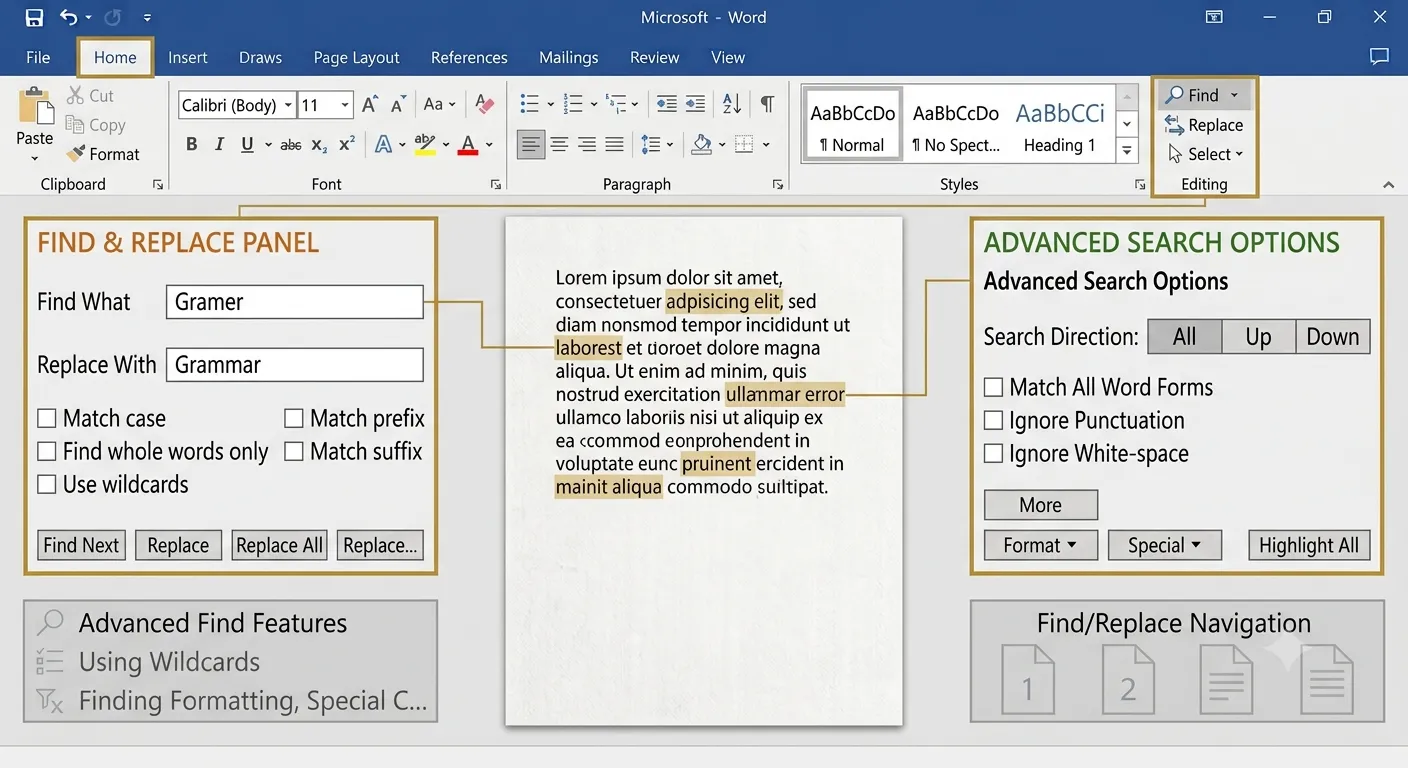
Find & Replace
Find & Replace is a powerful editing feature in Microsoft Word that allows users to quickly search for specific words, phrases or formatting and replace them with new text. It saves time when editing long documents and ensures consistency throughout the document.
What is Find & Replace?
The Find feature searches for specific words, numbers or symbols in a document, while the Replace feature replaces matching text automatically. These tools are especially useful when editing reports, books, research papers and business documents.
Find Text
Locate words, phrases and symbols instantly.
Replace Text
Replace one or all matching words automatically.
Save Time
Edit large documents quickly and efficiently.
Consistency
Keep names, terms and formatting consistent throughout the document.
Find Options
Microsoft Word provides several search options that help users find exact words, formatting, special characters and other document elements quickly.
| Option | Purpose |
|---|---|
| Find | Search for specific text in the document. |
| Replace | Replace searched text with new text. |
| Go To | Jump directly to a page, heading or section. |
| Navigation Pane | Display search results and document headings. |
| Advanced Find | Search using formatting and special options. |
1. Open the Home tab.

2. Click Find.

3. Type the word or
phrase.

4. Press Enter.

5. Browse the search
results.
Replace Text
The Replace feature allows users to substitute one word, phrase or formatting with another. Users can replace text one occurrence at a time or replace every matching occurrence throughout the document.
Replace One
Replace only the current occurrence.
Replace All
Replace every matching occurrence instantly.
Formatting
Replace text formatting along with the content.
Accuracy
Maintain consistent terminology throughout the document.
| Replace Option | Purpose |
|---|---|
| Find What | Enter the text to search for. |
| Replace With | Enter the new replacement text. |
| Replace | Replace the current match only. |
| Replace All | Replace every matching occurrence. |
| Find Next | Move to the next matching result. |
1. Open the Home tab.

2. Click Replace.

3. Enter the text in
Find What.

4. Enter the new text
in Replace With.

5. Click Replace or
Replace All.
Advanced Find Options
Microsoft Word provides advanced search options that allow users to search using case sensitivity, whole words, wildcards, formatting, special characters and other conditions for more accurate results.
Match Case
Search only words with the exact uppercase and lowercase letters.
Whole Words
Find complete words without matching partial words.
Wildcards
Use special characters to search complex text patterns.
Formatting
Search for text with specific fonts, colors or styles.
| Advanced Option | Purpose |
|---|---|
| Match Case | Search exact uppercase and lowercase text. |
| Find Whole Words | Search complete words only. |
| Use Wildcards | Search using special pattern characters. |
| Format | Search by font, paragraph or style formatting. |
| Special | Search page breaks, tabs, spaces and other special characters. |
Go To Feature
The Go To feature allows users to move directly to a specific page, line, heading, bookmark, section or table without scrolling through the document manually.
Page
Jump directly to a specific page number.
Section
Move quickly to another section of the document.
Bookmark
Navigate instantly to saved bookmarks.
Table
Locate tables and other document elements quickly.
| Go To Option | Purpose |
|---|---|
| Page | Jump to a specific page number. |
| Section | Move directly to a selected section. |
| Line | Navigate to a particular line number. |
| Bookmark | Open a previously saved bookmark. |
| Table | Locate tables within the document. |
1. Press Ctrl + G.

2. Choose the item
type.

3. Enter the page,
line or section
number.

4. Click Go To.

5. Click Close.
Practical Examples
Press Ctrl + F

Type:

Computer

Press Enter

View all search
results.
Press Ctrl + H

Find What:

Colour

Replace With:

Color

Click Replace All.
Press Ctrl + G

Select Page

Enter:

15

Click Go To.
Find & Replace Keyboard Shortcuts
| Shortcut | Function |
|---|---|
| Ctrl + F | Open the Find pane. |
| Ctrl + H | Open the Replace dialog box. |
| Ctrl + G | Open the Go To dialog box. |
| Shift + F4 | Repeat the last Find action. |
| Esc | Close the Find or Replace window. |
| Ctrl + A | Select the entire document. |
| F4 | Repeat the last command. |
Best Practices
- Use Find before making changes in large documents.
- Review each replacement carefully before selecting Replace All.
- Use Match Case when capitalization is important.
- Use Whole Words Only to avoid changing partial words.
- Preview formatting replacements before applying them.
- Use the Navigation Pane to move through search results quickly.
- Save the document before performing large replacement operations.
- Use Go To for faster navigation in long reports.
- Double-check replacements in important documents.
- Use keyboard shortcuts to improve editing speed.
Conclusion
Find & Replace is one of the most useful editing tools in Microsoft Word. It helps users locate words, phrases, numbers, symbols and formatting quickly while allowing them to replace incorrect or outdated content efficiently. Features such as Find, Replace, Go To and Advanced Find make editing large documents faster, more accurate and more consistent. By learning these tools, users can improve productivity, reduce manual editing and maintain professional-quality documents. Regular practice with Find & Replace will help you edit reports, assignments, books and business documents with greater speed and accuracy.