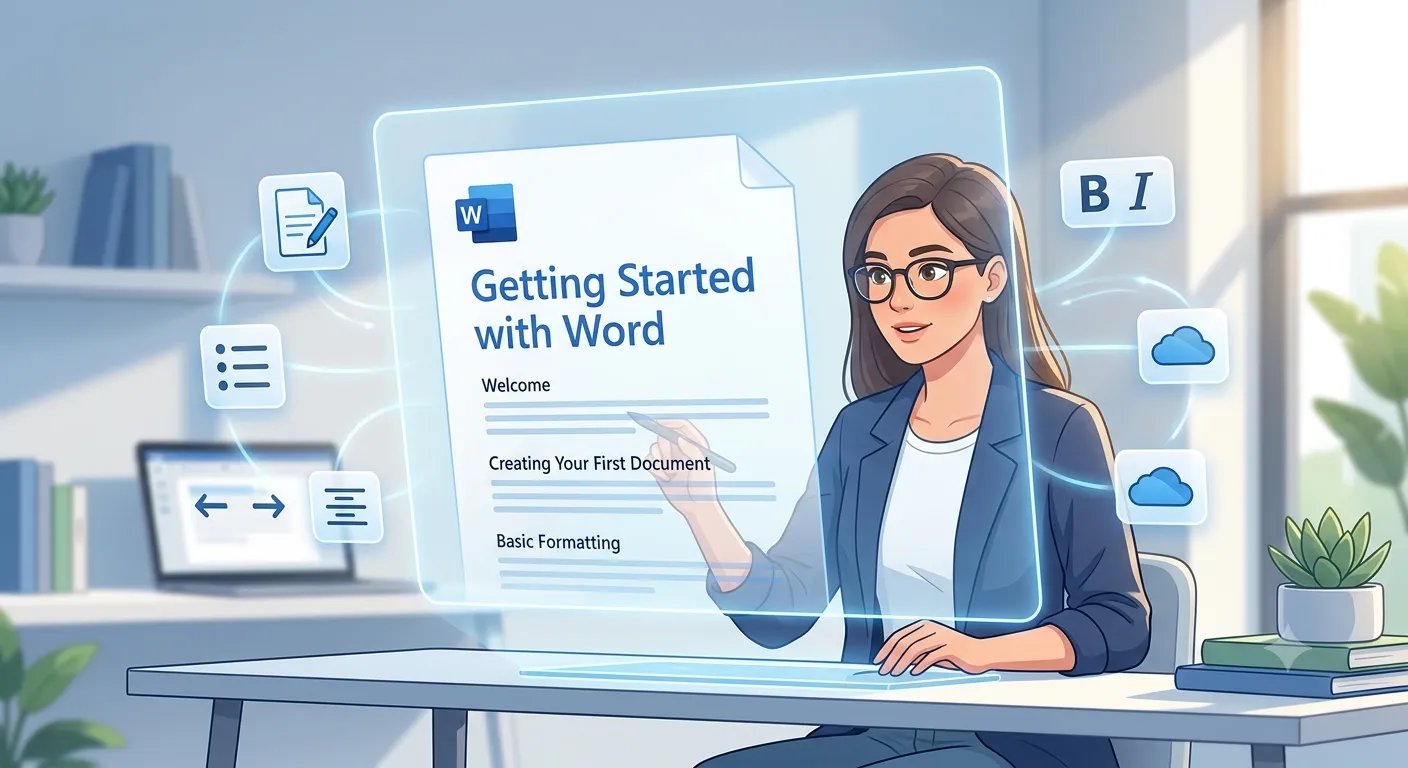
Introduction To Microsoft Word
Microsoft Word is a powerful word processing application developed by Microsoft Corporation. It is one of the most widely used applications in the Microsoft Office suite for creating, editing, formatting, saving, and printing professional documents. Microsoft Word is used by students, teachers, businesses, government organizations, and professionals worldwide to prepare letters, reports, resumes, assignments, invoices, brochures, certificates, and many other types of documents. Microsoft Word provides an easy-to-use interface with powerful tools such as text formatting, spell checking, grammar correction, templates, tables, images, SmartArt, charts, mail merge, comments, track changes, and cloud collaboration. These features help users create attractive and professional-quality documents quickly and efficiently. Whether you are preparing a school assignment, office report, business proposal, or personal letter, Microsoft Word offers everything needed to design high-quality documents with ease.
Key Features of Microsoft Word
Easy Document Creation
Create professional documents such as letters, reports, resumes, assignments, notices, and certificates with ease.
Rich Formatting
Customize fonts, colors, paragraph alignment, spacing, borders, themes, and styles to enhance document appearance.
Insert Objects
Add pictures, tables, charts, SmartArt, WordArt, icons, shapes, equations, and symbols to create attractive documents.
Templates
Use ready-made templates for resumes, business letters, brochures, invoices, certificates, and newsletters.
Cloud Integration
Save documents to OneDrive and access or edit them from anywhere using multiple devices.
Real-time Collaboration
Share documents, add comments, track changes, and collaborate with others simultaneously.
Microsoft Word Interface
- Title Bar displays the document name and application title.
- Quick Access Toolbar provides shortcuts for Save, Undo, Redo, and frequently used commands.
- Ribbon contains all commands organized into tabs such as Home, Insert, Design, Layout, References, Mailings, Review, and View.
- Document Area is the workspace where users type and edit text.
- Status Bar displays page number, word count, language, and zoom level.
- Scroll Bars allow navigation through long documents.
- Zoom Slider changes the document viewing size.
Main Components of Microsoft Word
| Component | Purpose | Example |
|---|---|---|
| Home | Basic formatting commands | Bold, Italic, Underline |
| Insert | Add objects into documents | Pictures, Tables, Shapes |
| Layout | Manage page settings | Margins, Orientation, Size |
| References | Create professional reports | Table of Contents, Footnotes |
| Review | Proofreading tools | Spell Check, Comments, Track Changes |
| View | Control document display | Zoom, Navigation Pane |
Text Formatting
- Microsoft Word provides powerful formatting tools to make documents attractive and professional.
- You can change the font style, font size, and font color.
- Apply Bold, Italic, Underline, Strikethrough, Superscript, and Subscript.
- Use Text Highlight Color to emphasize important information.
- Clear Formatting removes all applied formatting and restores default text style.
Paragraph Formatting
Editing Tools
Clipboard
Cut, Copy, Paste and Format Painter help users quickly move and duplicate text.
Find & Replace
Locate specific words or phrases and replace them automatically throughout the document.
Proofing
Use Spelling & Grammar Check, AutoCorrect and Thesaurus to improve document quality.
Built-in Features
Create resumes, reports, newsletters and business letters using ready-made professional templates.
Insert tables, charts, SmartArt and diagrams to present information clearly.
Track Changes, Comments and Compare documents help multiple users collaborate efficiently.
Generate personalized letters, envelopes and labels automatically from a data source.
Adjust page size, orientation, margins, columns, headers and footers before printing.
Preview documents before printing and export them directly as PDF files.
Creating Your First Microsoft Word Document
1. Open Microsoft Word.

2. Click Blank Document.

3. Type your text.

4. Format using Home Tab.

5. Save using Ctrl + S.

6. Print using Ctrl + P.
Practical Examples
ABC Company
Kolkata

Date: 15 July 2026

Dear Sir/Madam,

I am writing this letter to apply for the
position of Software Engineer.

Thank you.

Yours faithfully,
John Smith
JOHN SMITH

Software Developer

Phone :
9876543210

Email :
john@email.com

Skills

• MS Word

• Excel

• PowerPoint

• C Programming

• HTML

• CSS
Popular Keyboard Shortcuts
| Shortcut | Function |
|---|---|
| Ctrl + N | Create New Document |
| Ctrl + O | Open Document |
| Ctrl + S | Save Document |
| Ctrl + P | Print Document |
| Ctrl + C | Copy |
| Ctrl + X | Cut |
| Ctrl + V | Paste |
| Ctrl + Z | Undo |
| Ctrl + Y | Redo |
| Ctrl + B | Bold |
| Ctrl + I | Italic |
| Ctrl + U | Underline |
| Ctrl + A | Select All |
| Ctrl + F | Find |
| Ctrl + H | Replace |
Best Practices
- Always save your document frequently.
- Use proper headings and styles for professional formatting.
- Keep font style and font size consistent.
- Use spell check before printing.
- Insert page numbers in long documents.
- Use templates whenever possible.
- Maintain proper margins and spacing.
- Keep backup copies using OneDrive.
Conclusion
Microsoft Word is one of the most powerful and widely used word processing applications in the world. It enables users to create professional documents quickly using powerful formatting, editing, reviewing, and collaboration tools. From school assignments and resumes to business reports and official letters, Microsoft Word provides everything required to produce high-quality documents efficiently. Regular practice with Microsoft Word will improve your productivity and help you prepare professional documents for academic, personal, and workplace needs.