Headers & Footers
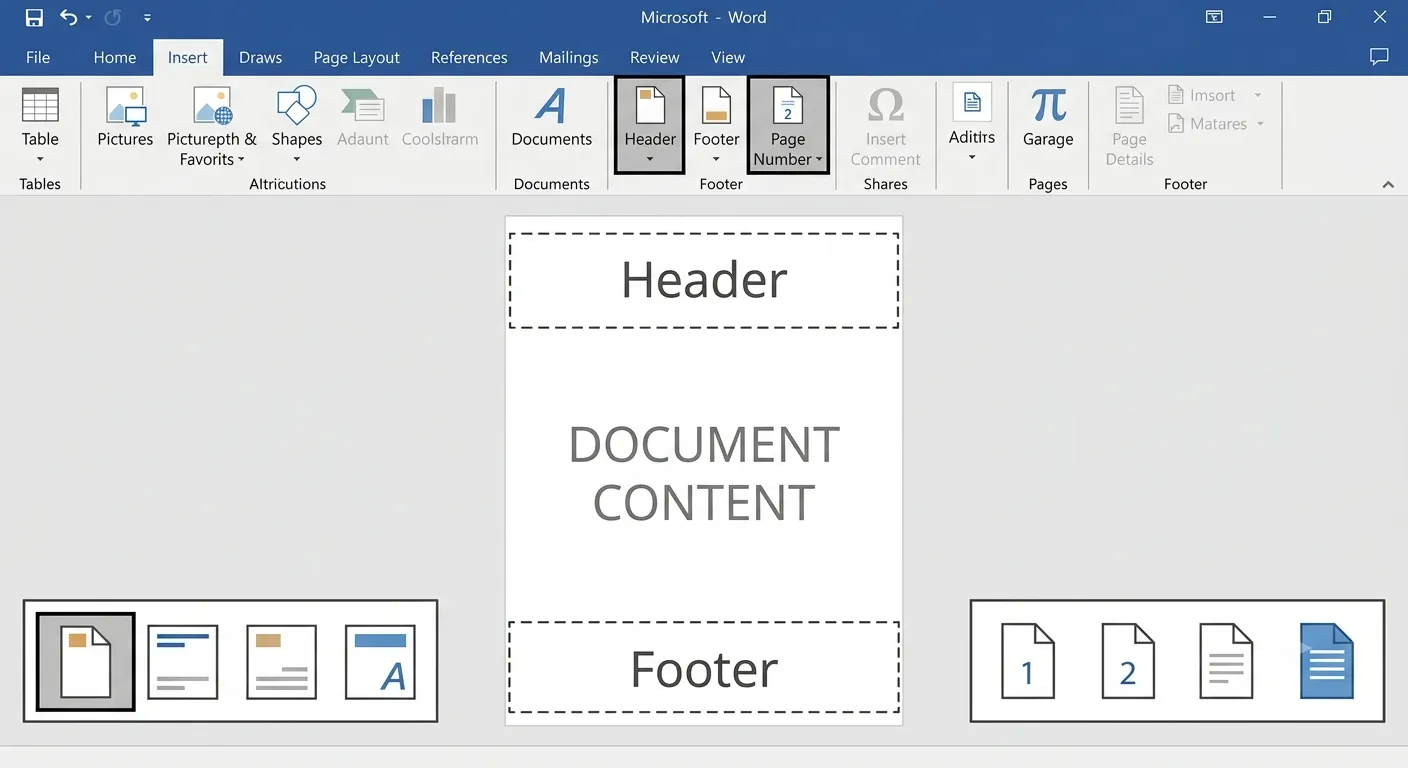
Headers and Footers are special areas located at the top and bottom of every page in a Microsoft Word document. They are commonly used to display page numbers, document titles, chapter names, dates, logos and other repeated information, making documents look professional and well organized.
What are Headers & Footers?
A Header appears in the top margin of each page, while a Footer appears in the bottom margin. Information placed in these areas is automatically repeated on every page unless different settings are applied.
Header
Displays information at the top of every page.
Footer
Displays information at the bottom of every page.
Automatic Repetition
Appears automatically on every page of the document.
Professional Layout
Improves document organization and presentation.
Common Header & Footer Elements
Headers and Footers can include different types of information depending on the document. Microsoft Word provides built-in fields and templates to insert these elements quickly.
| Element | Purpose |
|---|---|
| Page Number | Displays the current page number automatically. |
| Date & Time | Shows the current or fixed date and time. |
| Document Title | Displays the document name. |
| Logo | Adds a company or organization logo. |
| Author Name | Displays the document author's name. |
1. Open the Insert tab.

2. Click Header.

3. Choose a built-in
header style.

4. Type the required text.

5. Click Close Header
and Footer.
Inserting a Footer
A Footer appears at the bottom of every page. It commonly contains page numbers, copyright information, file names, dates and other repeated document details.
Page Number
Display automatic page numbers in the footer.
Date & Time
Insert today's date or an automatically updating date.
Copyright
Add copyright notices or company information.
Document Details
Display file name, author or other document properties.
| Footer Item | Description |
|---|---|
| Page Number | Automatically displays the current page number. |
| Date | Shows the current or fixed date. |
| File Name | Displays the document name. |
| Author | Shows the document author's name. |
| Copyright | Adds copyright or company information. |
1. Open the Insert tab.

2. Click Footer.

3. Choose a built-in
footer style.

4. Enter the required
information.

5. Click Close Header
and Footer.
Editing Headers & Footers
Microsoft Word allows users to edit Headers and Footers at any time. You can modify text, insert images, update dates, add page numbers or remove unwanted information without affecting the main document content.
Edit Text
Modify existing header or footer content easily.
Insert Images
Add logos or graphics to the header or footer area.
Update Fields
Refresh page numbers, dates and document properties.
Remove
Delete the header or footer whenever required.
| Editing Option | Purpose |
|---|---|
| Edit Header | Modify the content in the header section. |
| Edit Footer | Modify the content in the footer section. |
| Remove Header | Delete the existing header completely. |
| Remove Footer | Delete the existing footer completely. |
| Close | Return to the normal document editing view. |
Different First Page
The Different First Page option allows the first page of a document to have a unique Header or Footer. This is useful for reports, books, assignments and official documents where the cover page should not display the same information as the remaining pages.
Cover Page
Create a clean title page without page numbers or repeated text.
Reports
Keep the first page different from the rest of the document.
Assignments
Hide the header and footer on the title page.
Official Documents
Create professional documents with a separate cover page.
| Option | Purpose |
|---|---|
| Different First Page | Creates a unique header and footer for the first page. |
| Different Odd & Even Pages | Uses separate headers and footers for odd and even pages. |
| Link to Previous | Connects the current section with the previous section. |
| Navigation | Move quickly between headers and footers. |
| Close | Exit Header and Footer editing mode. |
1. Double-click the
header area.

2. Open the Header &
Footer tab.

3. Check Different
First Page.

4. Enter a separate
header for page one.

5. Close Header and
Footer editing.
Link to Previous
The Link to Previous feature connects the Header or Footer of the current section with the previous section. Disabling this option allows different sections of the document to have unique headers and footers.
Linked
Uses the same header or footer as the previous section.
Unlinked
Create different headers and footers for each section.
Books
Useful for chapters with separate titles and numbering.
Reports
Create unique section headers for professional reports.
| Feature | Benefit |
|---|---|
| Link to Previous | Reuse the previous section's header or footer. |
| Break Link | Create independent headers and footers. |
| Section Break | Separate document sections for unique formatting. |
| Navigation | Move between sections quickly. |
Practical Examples
Insert Tab

→ Header

Choose Blank

Type:

Computer Basics

Click Close Header
and Footer.
Insert Tab

→ Page Number

Bottom of Page

Choose Style

Save the document.
Open Header

Enable Different
First Page

Leave first page blank

Add header from
page two onward

Close editing.
Headers & Footers Keyboard Shortcuts
| Shortcut | Function |
|---|---|
| Alt + N + H | Open the Header menu. |
| Alt + N + O | Open the Footer menu. |
| Alt + Shift + P | Insert a page number field. |
| Esc | Close Header and Footer editing. |
| Ctrl + C | Copy selected content. |
| Ctrl + V | Paste copied content. |
| Delete | Remove selected content. |
Best Practices
- Keep headers and footers simple and consistent.
- Use page numbers for long documents.
- Place document titles in the header for easy identification.
- Use Different First Page for cover pages.
- Insert logos only when necessary.
- Maintain readable font sizes.
- Avoid overcrowding the header or footer area.
- Use section breaks when different chapters need different headers.
- Preview the document before printing.
- Save your work after making header and footer changes.
Conclusion
Headers and Footers are essential features in Microsoft Word that help create professional, organized and easy-to-read documents. They allow users to display repeated information such as page numbers, document titles, dates, author names and company logos automatically on every page. By learning how to insert, edit and customize Headers and Footers, including options like Different First Page and Link to Previous, users can prepare reports, assignments, books and business documents more efficiently. Regular practice with these tools will improve document formatting skills and produce polished, professional-quality documents.