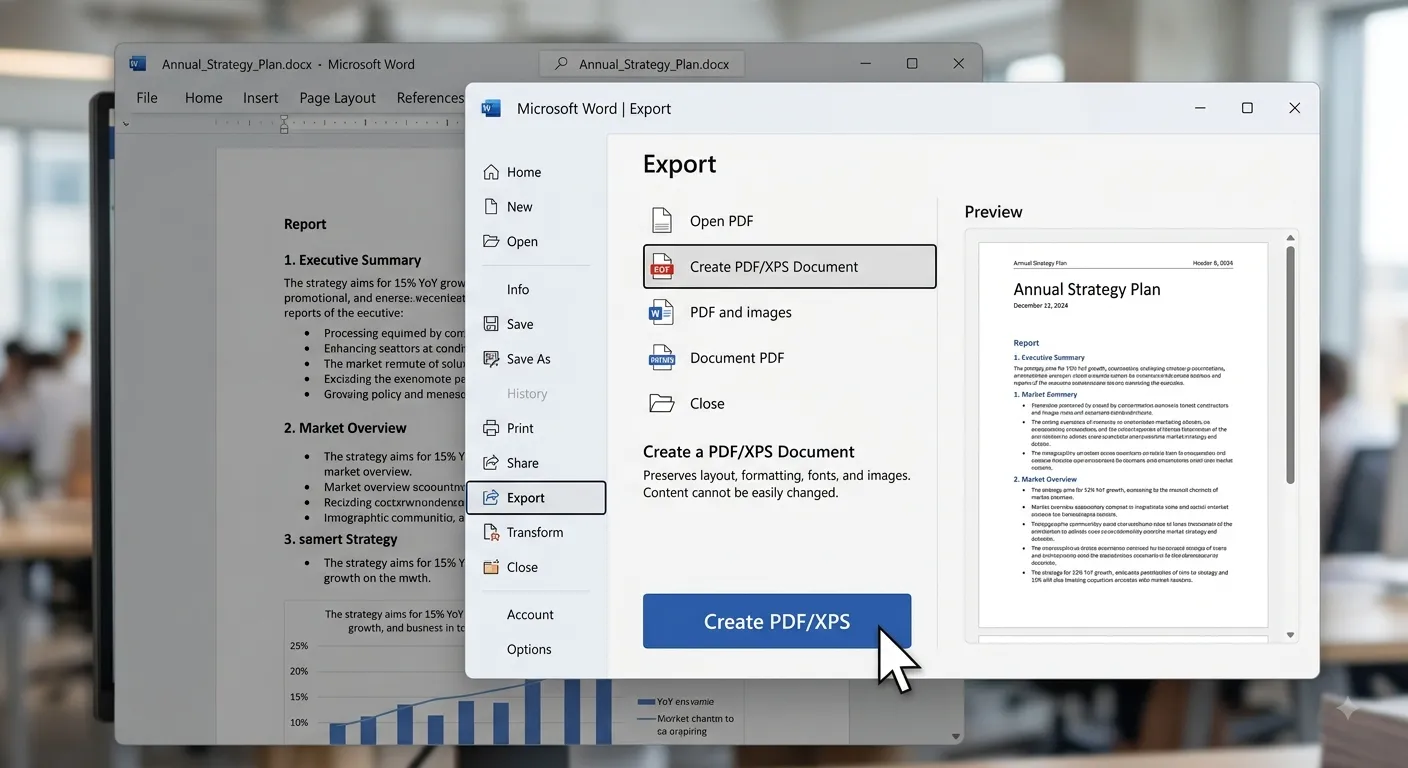
Export to PDF
Exporting a Microsoft Word document to PDF is a useful way to create a fixed-layout version of a document that can be shared, viewed and printed on different devices. PDF export helps preserve the document's layout, formatting, images and other content.
What is PDF?
PDF stands for Portable Document Format. A PDF file is designed to preserve the appearance and layout of a document so that it can be viewed consistently across different computers and devices.
Fixed Layout
Preserves the arrangement of text and other document elements.
Easy to View
Can be viewed on many computers, tablets and mobile devices.
Easy to Share
Useful for sharing finalized documents electronically.
Print Friendly
Can be printed while maintaining the document's intended layout.
Why Export Word Documents to PDF?
Word documents are useful for editing, but a PDF is often preferred when the document is ready to distribute or submit. Exporting to PDF helps reduce unintended formatting changes when the file is opened on another device.
| Purpose | Benefit of PDF |
|---|---|
| Sharing | Provides a convenient format for sending finalized documents. |
| Submission | Useful when an assignment, application or report must be submitted as a PDF. |
| Printing | Helps preserve the intended page layout for printing. |
| Archiving | Useful for keeping a finalized version of a document. |
| Distribution | Allows a fixed version of the document to be shared with others. |
Basic Method to Export to PDF
1. Open the Word
document.

2. Click File.

3. Select Save As
or Export.

4. Choose PDF as
the file format.

5. Select the location
where the PDF should
be saved.

6. Enter a suitable
file name.

7. Check the available
PDF options.

8. Click Save or
Publish.
PDF Export Options
Before creating the PDF, Microsoft Word may provide options for controlling the pages and output quality. These settings allow users to create a PDF that suits the intended purpose.
Choosing the PDF File Name and Location
When exporting a Word document to PDF, choose a meaningful file name and an appropriate folder. A clear file name makes the PDF easier to identify, organize and share later.
File Name
Use a descriptive name that clearly identifies the document.
Save Location
Select a folder where the exported PDF can be easily found.
Version Control
Add a date or version number when multiple versions are required.
Easy Identification
A meaningful name makes the PDF easier to search and recognize.
Document:

Computer_Networks_Report.docx

Export as PDF:

Computer_Networks_Report.pdf

Save Location:

Documents → College →
Assignments
PDF Quality Options
Microsoft Word may provide different quality options when creating a PDF. The appropriate option depends on how the PDF will be used.
| Quality Option | Suitable Use |
|---|---|
| Standard | Useful when good document quality is important, especially for printing. |
| Smaller Size | Useful when reducing the PDF file size is more important. |
Exporting Specific Pages to PDF
Sometimes only a portion of a Word document needs to be converted to PDF. The available export options can be used to specify which pages should be included.
Original Document:

Pages 1–20

Required PDF:

Pages 5–10

Open PDF export options.

Select the required
page range.

Enter:

5-10

Choose the file name.

Click Save or Publish.
Checking the PDF After Export
After exporting, open the PDF and check it carefully. This helps confirm that the document was converted correctly and that important content has not been affected by the export process.
| Check | What to Verify |
|---|---|
| Text | Make sure all important text appears correctly. |
| Images | Check that pictures and graphics are visible and positioned correctly. |
| Tables | Verify that tables retain their intended layout. |
| Page Breaks | Check that pages are divided correctly. |
| Headers & Footers | Make sure headers, footers and page numbers appear correctly. |
| Links | Check important hyperlinks if the document contains them. |
Common PDF Export Problems
Layout Changes
Check the original document layout and review the exported PDF page by page.
Missing Images
Make sure pictures and other visual elements appear correctly in the exported file.
Wrong Pages
Check the selected page range before exporting the document.
Large File Size
Consider an appropriate PDF quality option when a smaller file is required.
Links and Other Interactive Elements in PDF
When a Word document contains hyperlinks or other interactive elements, check the exported PDF to make sure they work as expected. This is particularly important for reports, assignments, presentations and documents that contain references to websites or other resources.
| Element | What to Check |
|---|---|
| Hyperlinks | Check that important links are present and usable. |
| Bookmarks | Check navigation features when they are included in the exported PDF. |
| References | Verify that referenced content is displayed correctly. |
| Table of Contents | Check that headings and navigation work correctly when applicable. |
Save As PDF vs Export to PDF
Microsoft Word can provide more than one way to create a PDF. Depending on the version of Word, users may see options such as Save As or Export. Both approaches can be used to create a PDF from the Word document.
| Method | Purpose |
|---|---|
| Save As | Allows the document to be saved in another file format, such as PDF. |
| Export | Provides an option specifically designed for creating a PDF or other supported format. |
Complete PDF Export Workflow
Prepare the Word Document
        ↓
Save the Original File
        ↓
Check Spelling & Formatting
        ↓
Review Page Layout
        ↓
Choose Save As or Export
        ↓
Select PDF Format
        ↓
Choose PDF Options
        ↓
Select Page Range
        ↓
Choose Quality
        ↓
Enter File Name
        ↓
Choose Save Location
        ↓
Save / Publish
        ↓
Open the PDF
        ↓
Check the Exported File
Best Practices for Exporting to PDF
- Save the original Word document before exporting it to PDF.
- Check the document carefully for spelling and formatting errors.
- Review page breaks, margins and overall layout before export.
- Use a meaningful and descriptive PDF file name.
- Save the PDF in an appropriate and easy-to-find folder.
- Select the correct page range when only specific pages are required.
- Choose a suitable quality option based on the purpose of the PDF.
- Open the exported PDF and check its contents before sharing it.
- Verify important images, tables, headers, footers and page numbers.
- Check important hyperlinks and navigation elements when applicable.
Practical Example — Exporting a Project Report
Open the project report.

        ↓

Check all chapters.

        ↓

Check images and tables.

        ↓

Review headers, footers
and page numbers.

        ↓

Save the Word document.

        ↓

Select File → Save As
or Export.

        ↓

Choose PDF.

        ↓

Select the required
quality.

        ↓

Enter:

Project_Report.pdf

        ↓

Choose the save location.

        ↓

Save the PDF.

        ↓

Open the PDF and
review every page.
Key Points to Remember
PDF Format
PDF preserves the intended appearance and layout of a finalized document.
Export
Use Save As or Export to create a PDF from a Word document.
Options
Choose appropriate pages, quality and other available PDF settings.
Verify
Always open the exported PDF and check it before sharing or submitting it.
Frequently Asked Questions
What is the purpose of exporting a Word document to PDF?
Exporting a Word document to PDF creates a fixed-layout version that is convenient for sharing, viewing, printing and submitting.
How do I export a Word document to PDF?
Open the document, choose File → Save As or File → Export, select PDF as the file format, choose the required options and save the file.
Can I export only selected pages to PDF?
Yes. When the available PDF options provide page-range controls, you can specify the pages that should be included in the exported PDF.
Why should I check the PDF after exporting?
Checking the exported PDF helps confirm that text, images, tables, page breaks, headers, footers and other important elements appear correctly.
What should I do if the PDF file is too large?
When available, choose an appropriate smaller-size or optimized PDF option. The best setting depends on whether file size or document quality is more important.
Word Document vs PDF
| Feature | Word Document | |
|---|---|---|
| Extension | .docx | |
| Editing | Designed for editing. | Generally used as a finalized format. |
| Layout | Can be modified during editing. | Designed to preserve the document layout. |
| Sharing | Useful when recipients need to edit the document. | Useful when recipients mainly need to view or print it. |
| Purpose | Creating and editing content. | Sharing and distributing a finalized document. |
PDF Export Checklist
☐ Save the original
  Word document.

☐ Check spelling and
  formatting.

☐ Review page layout.

☐ Check images and
  tables.

☐ Check headers,
  footers and page
  numbers.

☐ Choose the required
  PDF page range.

☐ Select an appropriate
  quality option.

☐ Give the PDF a clear
  file name.

☐ Save it in the correct
  location.

☐ Open the PDF.

☐ Review the exported
  document.

☐ Share or submit the
  final PDF.
Chapter Summary
In this chapter, we learned how to export Microsoft Word documents to PDF. We covered the purpose of PDF files, the basic export process, file naming and storage, page selection, PDF quality options and methods for checking the exported document. Exporting a document to PDF is especially useful when a finalized version needs to be shared, printed, archived or submitted without relying on the recipient's Word formatting.
Remember: Always review the original Word document before exporting, choose the appropriate PDF settings, and open the exported PDF to verify the final result.
Conclusion
Export to PDF is a simple and useful feature in Microsoft Word for creating a shareable and fixed-layout version of a document. By selecting the appropriate export method, page range, quality and file location, users can create professional PDF files. A final review of the exported PDF ensures that the document is ready for printing, sharing, submission or storage.