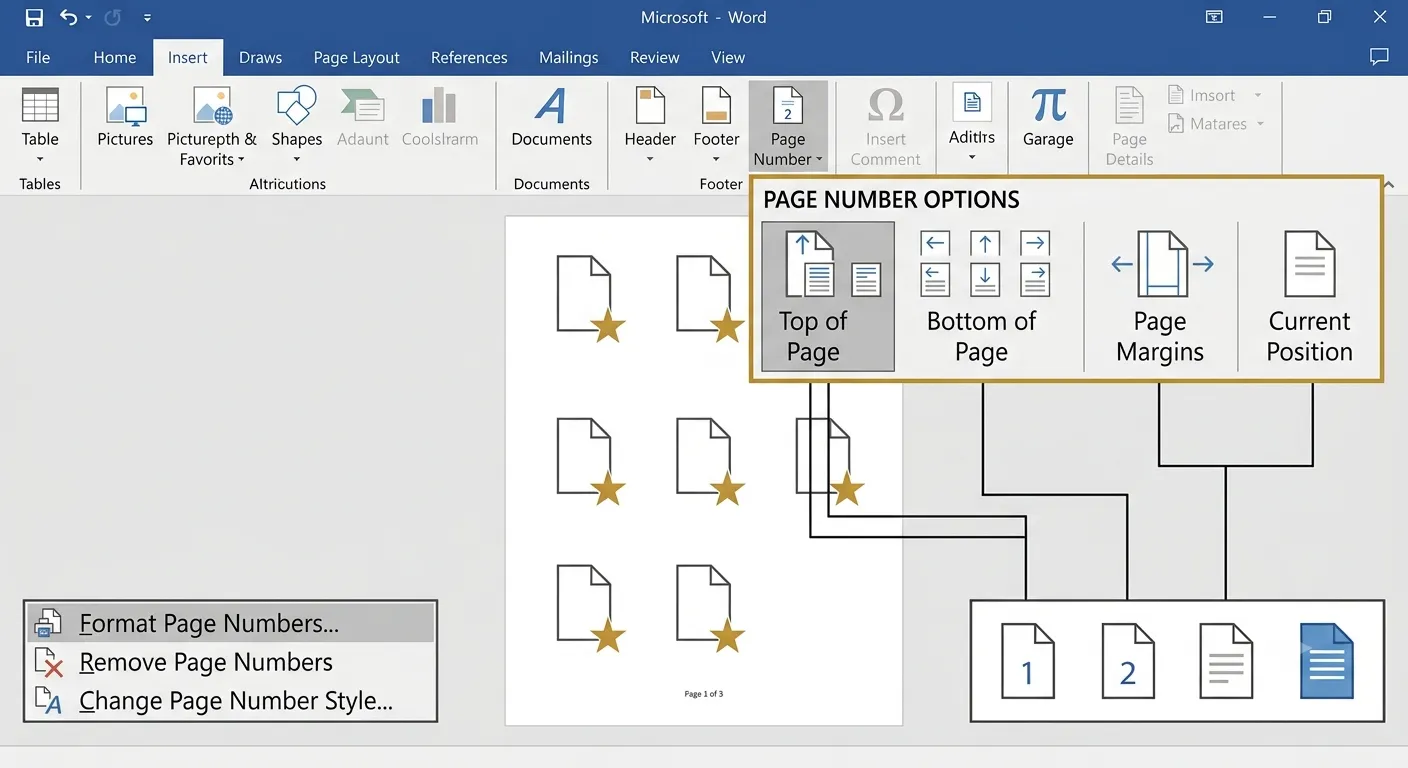
Page Numbers
Page Numbers are used to identify and organize pages in a document. Microsoft Word allows users to insert automatic page numbers in headers, footers or page margins, making reports, books, assignments and official documents easy to read and navigate.
What are Page Numbers?
Page Numbers are automatically generated numbers that appear on each page of a document. They help readers locate information quickly and maintain proper page sequence, especially in long documents.
Automatic Numbering
Numbers are inserted and updated automatically.
Easy Navigation
Helps readers move quickly through long documents.
Professional Documents
Essential for books, reports, projects and assignments.
Automatic Updates
Page numbers adjust automatically when pages are added or removed.
Page Number Positions
Microsoft Word provides several locations where page numbers can be inserted. Users can choose the position that best matches the document style and formatting requirements.
| Position | Description |
|---|---|
| Top of Page | Places page numbers inside the header. |
| Bottom of Page | Places page numbers inside the footer. |
| Page Margins | Displays numbers along the left or right margin. |
| Current Position | Inserts the page number at the cursor location. |
1. Open the Insert tab.

2. Click Page Number.

3. Choose the required
position.

4. Select a numbering
style.

5. Click Close Header
and Footer.
Formatting Page Numbers
Microsoft Word allows users to customize page numbers by changing number formats, selecting a starting page number and choosing whether numbering should continue from previous sections.
Number Format
Choose Arabic numbers, Roman numerals or alphabetic numbering.
Start At
Begin page numbering from any desired number.
Continue
Continue numbering from the previous section.
Section Numbers
Include chapter or section numbering with page numbers.
| Formatting Option | Purpose |
|---|---|
| Number Format | Select Arabic, Roman or alphabetic numbering. |
| Start At | Specify the first page number. |
| Continue | Continue numbering from the previous section. |
| Include Chapter Number | Add chapter numbers before page numbers. |
| Alignment | Align page numbers left, center or right. |
Editing Page Numbers
After inserting page numbers, Microsoft Word allows users to edit their position, style and formatting. Users can also restart numbering, continue numbering across sections or remove page numbers whenever required.
Edit Number
Modify the appearance and position of page numbers.
Restart Numbering
Begin numbering from a selected page or section.
Continue Numbering
Continue page numbers from the previous section.
Remove Numbers
Delete all page numbers with a single command.
| Editing Tool | Purpose |
|---|---|
| Format Page Numbers | Change numbering style and starting value. |
| Remove Page Numbers | Delete all inserted page numbers. |
| Go to Header/Footer | Edit the page number directly. |
| Close Header & Footer | Return to the normal document view. |
| Link to Previous | Continue numbering across document sections. |
Removing Page Numbers
If page numbers are no longer required, Microsoft Word provides an easy option to remove them from the entire document without affecting the document content.
1. Open the Insert tab.

2. Click Page Number.

3. Select Remove
Page Numbers.

4. Save the document.

5. Verify that all page
numbers are removed.
Different First Page Number
For documents with a cover page, Microsoft Word allows users to hide the page number on the first page while continuing automatic numbering from the second page.
Cover Page
Hide the page number from the title page.
Second Page
Start visible page numbering from page two.
Professional Reports
Create reports with a clean and formal first page.
Assignments
Prepare academic documents with proper numbering.
| Option | Purpose |
|---|---|
| Different First Page | Hide the page number on the first page. |
| Format Page Numbers | Customize numbering style and starting number. |
| Continue from Previous Section | Maintain continuous numbering across sections. |
| Start At | Begin numbering from a specific value. |
| Remove Page Numbers | Delete page numbers from the document. |
1. Double-click the
header or footer.

2. Open the Header &
Footer tab.

3. Select Different
First Page.

4. Close Header and
Footer editing.

5. Save the document.
Practical Examples
Insert Tab

→ Page Number

Bottom of Page

Choose Plain Number

Save the document.
Insert Tab

→ Page Number

Format Page Numbers

Start At

5

Click OK.
Double-click Header

Enable Different
First Page

Insert Page Numbers

Close Header &
Footer

Save the document.
Page Numbers Keyboard Shortcuts
| Shortcut | Function |
|---|---|
| Alt + N + U | Open the Page Number menu. |
| Alt + Shift + P | Insert a PAGE field. |
| Esc | Close Header and Footer editing. |
| Ctrl + C | Copy selected page number or content. |
| Ctrl + V | Paste copied content. |
| Delete | Remove selected page number. |
| F9 | Update page number fields. |
Best Practices
- Use page numbers in reports, books and assignments.
- Keep page numbers in the same position throughout the document.
- Hide the page number on the cover page when required.
- Choose a numbering style suitable for the document.
- Use section breaks before restarting page numbering.
- Preview page numbers before printing.
- Avoid manually typing page numbers.
- Use automatic numbering for easier document management.
- Check numbering after adding or deleting pages.
- Save the document after formatting page numbers.
Conclusion
Page Numbers are an important feature in Microsoft Word that help organize documents and improve readability. They allow readers to navigate long reports, books, assignments and business documents with ease. Microsoft Word provides flexible options to insert page numbers in different positions, format numbering styles, restart numbering, hide the first page number and remove page numbers whenever needed. By mastering these features, users can create well-structured and professional documents that are easy to manage and present. Regular practice with page numbering tools will improve document formatting skills and ensure consistency in every document.