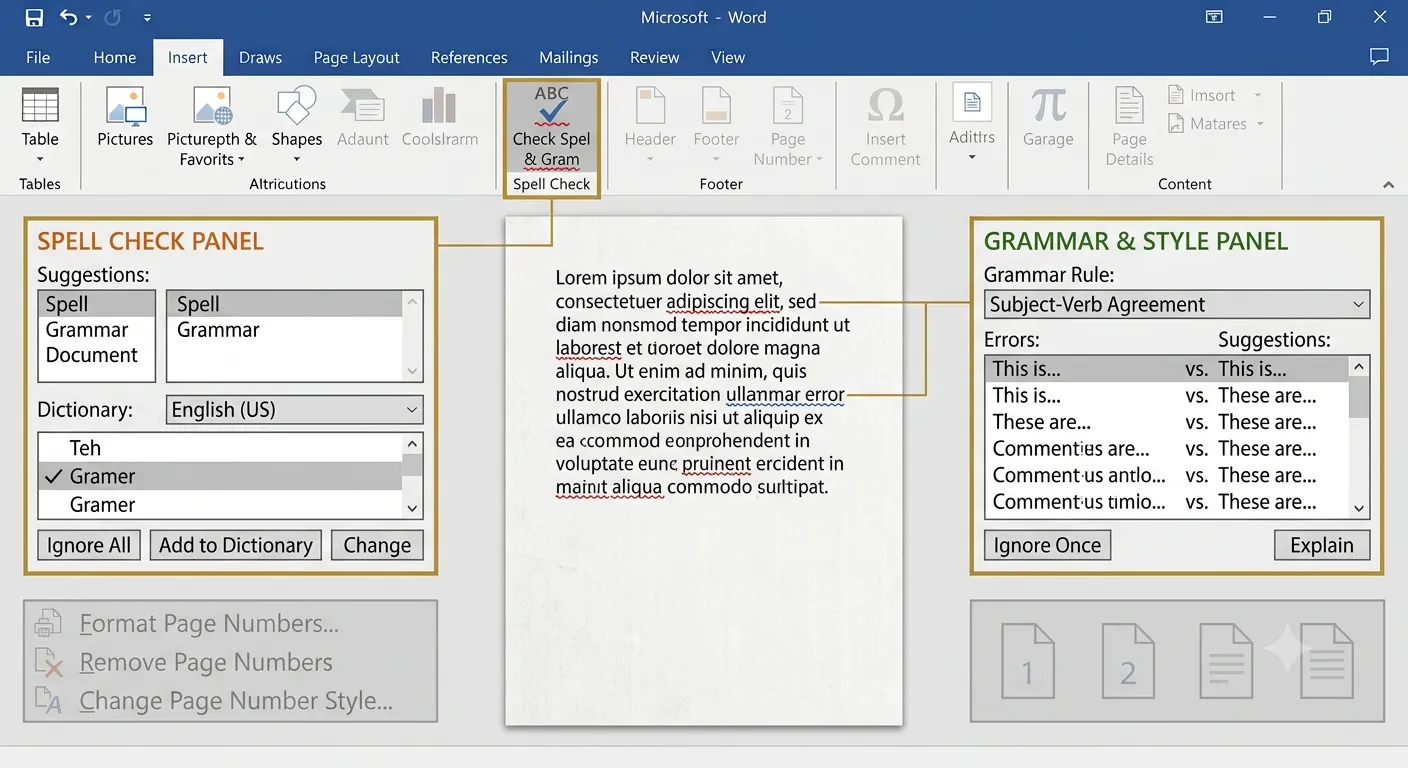
Spell Check & Grammar
Spell Check and Grammar are powerful proofing features in Microsoft Word that help users identify spelling mistakes, grammar errors and writing issues automatically. These tools improve document quality by suggesting corrections and making writing more accurate, clear and professional.
What is Spell Check & Grammar?
Spell Check detects incorrectly spelled words, while Grammar Check identifies grammatical mistakes such as incorrect sentence structure, punctuation and word usage. Microsoft Word highlights these issues and provides suitable correction suggestions.
Spell Check
Finds spelling mistakes and suggests the correct words.
Grammar Check
Detects grammar, punctuation and sentence errors.
Suggestions
Provides intelligent correction recommendations.
Error-Free Documents
Improves writing quality and professionalism.
Types of Writing Errors
Microsoft Word highlights different writing mistakes using colored underlines, making it easy to identify and correct problems before printing or sharing the document.
| Error Type | Description |
|---|---|
| Spelling Error | Incorrectly spelled words. |
| Grammar Error | Incorrect sentence structure or grammar. |
| Punctuation Error | Missing or incorrect punctuation marks. |
| Writing Suggestion | Recommendations for clearer and better writing. |
| Repeated Words | Detects unnecessary duplicate words. |
1. Open the Review tab.

2. Click Editor or
Spelling & Grammar.

3. Review each
suggestion.

4. Accept or Ignore
the correction.

5. Finish checking.
Proofing Marks
Microsoft Word uses colored underlines to indicate different types of writing issues. These visual indicators help users quickly identify and correct mistakes.
Spelling
Highlights incorrectly spelled words.
Grammar
Indicates grammar and punctuation problems.
Writing Style
Suggests improvements for clarity and readability.
Correct Text
No underline indicates no detected issues.
| Underline | Meaning |
|---|---|
| Red | Possible spelling mistake. |
| Blue | Grammar or punctuation issue. |
| Purple | Writing style or clarity suggestion. |
| No Underline | No errors detected. |
AutoCorrect Feature
AutoCorrect is a built-in Microsoft Word feature that automatically corrects common spelling mistakes, typing errors and capitalization problems while you type. It saves time and improves writing accuracy without requiring manual corrections.
Automatic Fix
Corrects common spelling mistakes instantly.
Typing Errors
Fixes accidental keyboard mistakes while typing.
Capitalization
Automatically corrects capitalization errors.
Custom Entries
Users can add their own AutoCorrect replacements.
| AutoCorrect Feature | Purpose |
|---|---|
| Replace Text | Replace incorrect words with correct ones automatically. |
| Correct Capitals | Fix accidental capital letters. |
| Custom Entries | Create personal shortcuts for frequently used text. |
| Math AutoCorrect | Automatically insert mathematical symbols. |
| Formatting | Apply formatting while typing. |
1. Open the File tab.

2. Click Options.

3. Select Proofing.

4. Click AutoCorrect
Options.

5. Add or edit entries.

6. Click OK.
Using Microsoft Editor
Microsoft Editor is an advanced proofing tool that checks spelling, grammar, punctuation, clarity, conciseness and writing style. It provides intelligent suggestions to improve the overall quality of a document.
Spelling
Detects and corrects spelling mistakes throughout the document.
Grammar
Checks sentence structure and grammar accuracy.
Clarity
Suggests improvements for clearer and more readable writing.
Writing Style
Provides recommendations to make writing more professional.
| Editor Feature | Purpose |
|---|---|
| Spelling | Correct spelling mistakes automatically. |
| Grammar | Identify grammar and punctuation errors. |
| Clarity | Improve readability and sentence structure. |
| Conciseness | Suggest shorter and clearer wording. |
| Vocabulary | Recommend stronger word choices. |
1. Open the Review tab.

2. Click Editor.

3. Wait for Word to
analyze the document.

4. Review the
suggestions.

5. Accept or Ignore
each suggestion.

6. Save the document.
Proofing Language
Microsoft Word allows users to select the proofing language used for spelling and grammar checks. Choosing the correct language ensures accurate suggestions and reduces false error detections.
Multiple Languages
Supports proofing for many international languages.
English (UK)
Uses British English spelling and grammar rules.
English (US)
Uses American English spelling and grammar rules.
Custom Settings
Select the proofing language that matches your document.
| Language Option | Purpose |
|---|---|
| Set Proofing Language | Select the language used for spelling and grammar checking. |
| Detect Language Automatically | Allow Word to identify the document language automatically. |
| Do Not Check Spelling | Exclude selected text from proofing. |
| Default Language | Set the preferred proofing language for new documents. |
| Custom Dictionary | Add frequently used words to avoid repeated spelling warnings. |
1. Select the text.

2. Open the Review tab.

3. Click Language.

4. Choose Set
Proofing Language.

5. Select the required
language.

6. Click OK.
Custom Dictionary
A Custom Dictionary stores words that are not included in the standard Microsoft Word dictionary. Names, technical terms, abbreviations and organization-specific words can be added so they are no longer marked as spelling mistakes.
Add Words
Store new words for future spell checking.
Company Terms
Save organization-specific names and terminology.
Technical Words
Keep scientific and technical terms from being flagged.
Permanent Storage
Saved words remain available for future documents.
| Dictionary Option | Description |
|---|---|
| Add to Dictionary | Add the selected word to the custom dictionary. |
| Edit Dictionary | View or remove saved words. |
| Ignore All | Ignore the selected word throughout the document. |
| Change | Replace the incorrect word with the suggested word. |
| Change All | Replace every occurrence of the incorrect word. |
1. Right-click the
underlined word.

2. Click Add to
Dictionary.

3. The word is saved.

4. Continue editing
the document.

5. Save the document.
Practical Examples
Type:

Micorsoft Word

Run Spell Check

Choose:

Microsoft Word

Click Change.
Sentence:

He go to school.

Grammar Suggestion:

He goes to school.

Click Accept.
Word:

OpenAI

Right-click

Add to Dictionary

Continue typing.