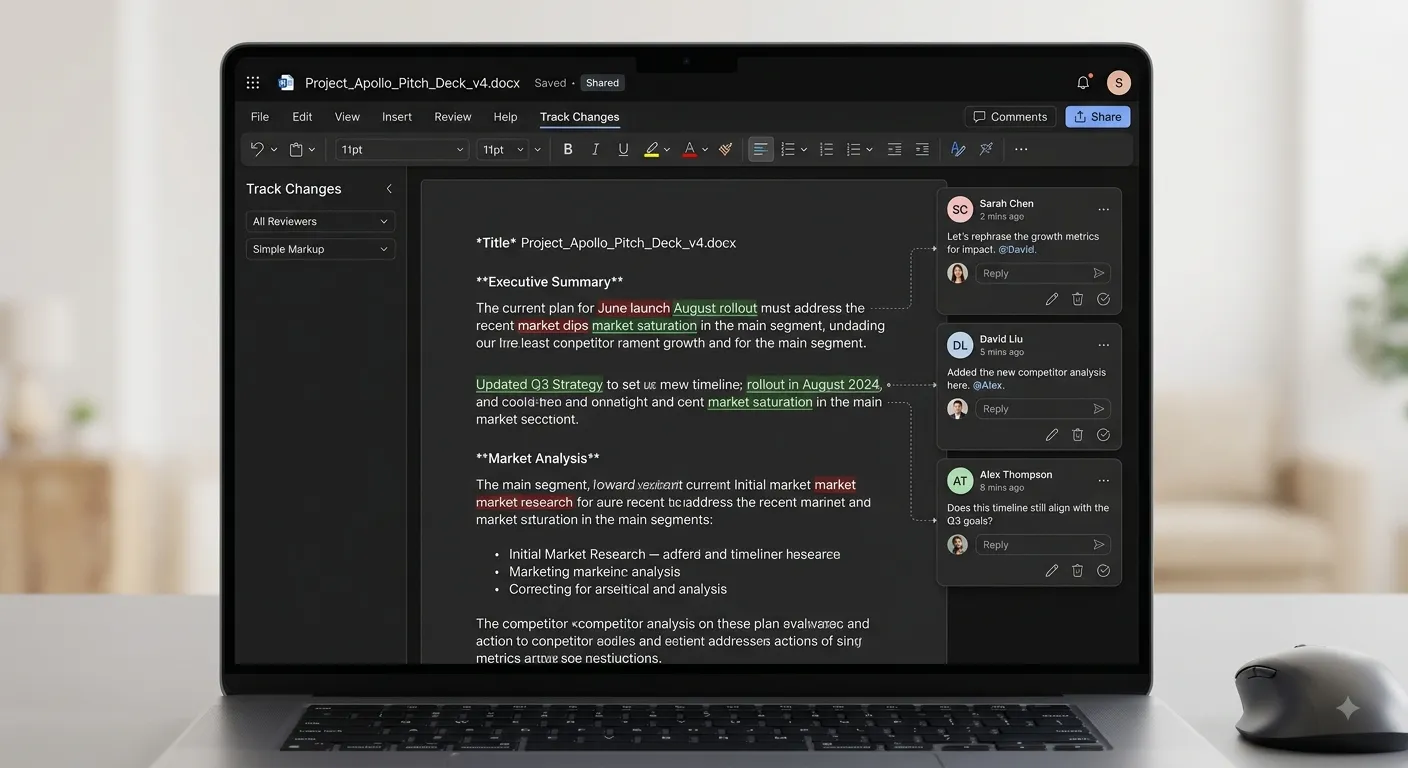
Comments & Track Changes
Comments and Track Changes are important Microsoft Word features used for reviewing, editing and collaborating on documents. They allow users to provide feedback, monitor modifications and approve or reject changes without losing the original content.
What are Comments?
A Comment is a note attached to specific text or an element in a document. Comments are useful for giving suggestions, asking questions, explaining changes or providing feedback without changing the main document content.
Add Feedback
Leave notes and suggestions for other users.
Ask Questions
Ask questions about specific parts of a document.
Add Notes
Attach explanations or reminders to selected text.
Collaborate
Communicate with other reviewers without changing the original text.
What is Track Changes?
Track Changes records modifications made to a Word document. When it is enabled, Word identifies inserted text, deleted text and formatting changes so that reviewers can examine the editing history and decide which changes should remain.
| Feature | Purpose |
|---|---|
| Comments | Add notes, suggestions and questions. |
| Track Changes | Record edits made to the document. |
| Accept | Keep a tracked change in the document. |
| Reject | Remove a tracked change and restore the previous content. |
| Reviewing | Examine edits and comments before finalizing the document. |
1. Select the text
you want to comment on.

2. Open the Review
tab.

3. Click New Comment.

4. Type your comment
in the comment box.

5. Click Post Comment
or press Ctrl + Enter.
Managing Comments
After adding a comment, users can reply to it, edit its content, resolve it or delete it. These options make comments useful for discussions and collaborative document review.
Reply
Respond to an existing comment and continue the discussion.
Edit
Modify the content of your own comment.
Resolve
Mark a comment as resolved after the issue has been addressed.
Delete
Remove a comment that is no longer required.
| Comment Action | Purpose |
|---|---|
| Reply | Continue a discussion about the selected content. |
| Edit Comment | Change the text of an existing comment. |
| Resolve Comment | Mark the comment as completed or addressed. |
| Delete Comment | Remove the comment permanently. |
| Previous / Next | Move between comments in the document. |
Turning On Track Changes
Track Changes must be enabled before editing if you want Microsoft Word to record the modifications. Once enabled, insertions, deletions and formatting changes can be reviewed later.
1. Open the Review tab.

2. Locate the Tracking
group.

3. Click Track Changes.

4. Make the required
edits.

5. Word will record
the changes automatically.
Viewing Tracked Changes
Microsoft Word provides different ways to display tracked changes. Reviewers can choose how much editing information should be visible while reviewing the document.
| Display Option | Purpose |
|---|---|
| Simple Markup | Shows a clean document with indicators where changes have been made. |
| All Markup | Displays all tracked changes and comments. |
| No Markup | Shows the document as it would appear after accepting the changes. |
| Original | Shows the document in its original form before tracked changes. |
Reviewing Changes
After edits have been recorded, a reviewer can examine each modification and decide whether to keep or remove it. The Review tab provides commands for moving through changes and managing them.
1. Open the Review tab.

2. Make sure Track
Changes is enabled
or review the recorded
changes.

3. Use Previous or
Next to move between
changes.

4. Examine each
modification.

5. Click Accept or
Reject.

6. Continue until all
changes have been
reviewed.
Accepting Changes
The Accept command keeps a tracked modification and incorporates it into the document. Reviewers can accept changes individually or use the available options to accept multiple changes.
Accept Change
Keep the currently selected modification.
Accept All
Keep all tracked changes in the document.
Next Change
Move to the next modification before reviewing it.
Review Carefully
Check each change before accepting it.
Rejecting Changes
The Reject command removes a tracked modification and restores the previous version of the affected content. Like accepting changes, reviewers can reject individual changes or multiple changes.
| Action | Effect |
|---|---|
| Accept | Keeps the selected change. |
| Reject | Removes the selected change. |
| Accept All | Keeps all tracked changes. |
| Reject All | Removes all tracked changes. |
1. Open the Review tab.

2. Select the tracked
change.

3. Click Accept or
Reject.

4. Choose the required
option.

5. Move to the next
change.

6. Continue until all
changes are reviewed.
Tracking Formatting Changes
Track Changes can also record formatting modifications. Depending on the tracking settings, changes to fonts, styles, alignment and other formatting can be shown during the review process.
Font Changes
Track changes to font family, size and appearance.
Text Formatting
Identify changes to bold, italic and other formatting.
Paragraph Formatting
Review changes to alignment, spacing and indentation.
Styles
Identify changes made to document styles.
Reviewing Specific Types of Changes
The reviewing tools can be used to focus on different types of modifications. This makes it easier to examine a document when many edits have been made.
| Change Type | What to Review |
|---|---|
| Insertions | Text or content added to the document. |
| Deletions | Text or content removed from the document. |
| Formatting | Changes to fonts, styles and paragraph formatting. |
| Comments | Notes, suggestions and discussions added by reviewers. |
Collaborating with Other Users
Comments and Track Changes are especially useful when several people work on the same document. Authors, editors, teachers, managers and reviewers can communicate feedback and record modifications without immediately changing the final version.
Student submits the
document.

        ↓

Teacher enables or
reviews Track Changes.

        ↓

Teacher edits the
document.

        ↓

Teacher adds Comments
with suggestions.

        ↓

Student reviews the
feedback.

        ↓

Changes are accepted
or rejected.

        ↓

Final document is
prepared.
Protecting the Review Process
When a document is being reviewed by multiple people, it may be useful to restrict editing or control who can make changes. Microsoft Word provides document protection features that can help preserve the review process and prevent unwanted modifications.
Restrict Editing
Limit the types of editing that users can perform.
Control Review
Help maintain a controlled document-review workflow.
Protect Content
Reduce the risk of unwanted changes to important content.
Preserve Edits
Keep the document ready for review and approval.
Reviewing Comments and Changes Together
Comments and Track Changes work together during document review. Comments provide explanations and suggestions, while tracked changes show actual modifications made to the document.
| Tool | What It Records | Typical Use |
|---|---|---|
| Comments | Notes and feedback | Suggestions and questions |
| Track Changes | Document modifications | Editing and revision |
| Accept | Approved changes | Finalize edits |
| Reject | Removed changes | Discard unwanted edits |
| Resolve | Completed discussions | Close comments after review |
Finalizing a Reviewed Document
1. Review all tracked
changes.

2. Accept or reject
each required change.

3. Review all comments.

4. Reply to comments
that require a response.

5. Resolve comments
that have been addressed.

6. Check the final
document carefully.

7. Turn off Track
Changes when editing
is complete.

8. Save the final
document.
Useful Review Shortcuts
| Shortcut | Function |
|---|---|
| Ctrl + Alt + M | Insert a new comment. |
| Ctrl + S | Save the document. |
| Ctrl + Z | Undo the previous action. |
| Ctrl + Y | Redo the previous action. |
| Ctrl + P | Print the reviewed document. |
Best Practices for Comments & Track Changes
- Add comments to specific text so that feedback is easy to understand.
- Keep comments clear, short and relevant to the document.
- Use Track Changes when several people need to review or edit the same document.
- Review every tracked change before accepting or rejecting it.
- Resolve comments after the related issue has been addressed.
- Use meaningful explanations when suggesting major changes.
- Save a backup copy of an important document before completing a major review.
- Check the final document after all changes and comments have been processed.
- Turn off Track Changes when the review process is finished if further edits should not be tracked.
- Make sure confidential comments or reviewer information are removed when necessary before sharing the final document.
Comments vs Track Changes
| Feature | Comments | Track Changes |
|---|---|---|
| Main Purpose | Provide feedback or notes. | Record document edits. |
| Changes Text | No | Yes, when edits are made. |
| Suggestions | Can contain suggestions. | Shows actual modifications. |
| Review Action | Reply or resolve. | Accept or reject. |
| Collaboration | Useful for discussion. | Useful for editing and approval. |
Practical Example
Original Text:

The company sales
increased by 10%.

Reviewer Action:

Track Changes →
Change "10%" to "15%".

Comment:

"Please verify this
figure with the latest
sales report."

Author:

Checks the data.

Accepts or rejects
the tracked change.

Replies to the comment.

Resolves the comment.

Final Text:

The company sales
increased by 15%.
Key Points to Remember
Comments
Use comments to provide feedback, questions and suggestions.
Track Changes
Use Track Changes to record edits made to a document.
Accept
Accept changes that should become part of the final document.
Reject
Reject changes that should not remain in the document.
Conclusion
Comments and Track Changes make Microsoft Word a powerful tool for document review and collaboration. Comments allow users to communicate feedback and suggestions, while Track Changes records actual modifications made to the document. By reviewing, accepting or rejecting changes and resolving comments, users can create a clear and finalized version of a document while maintaining an effective review process.