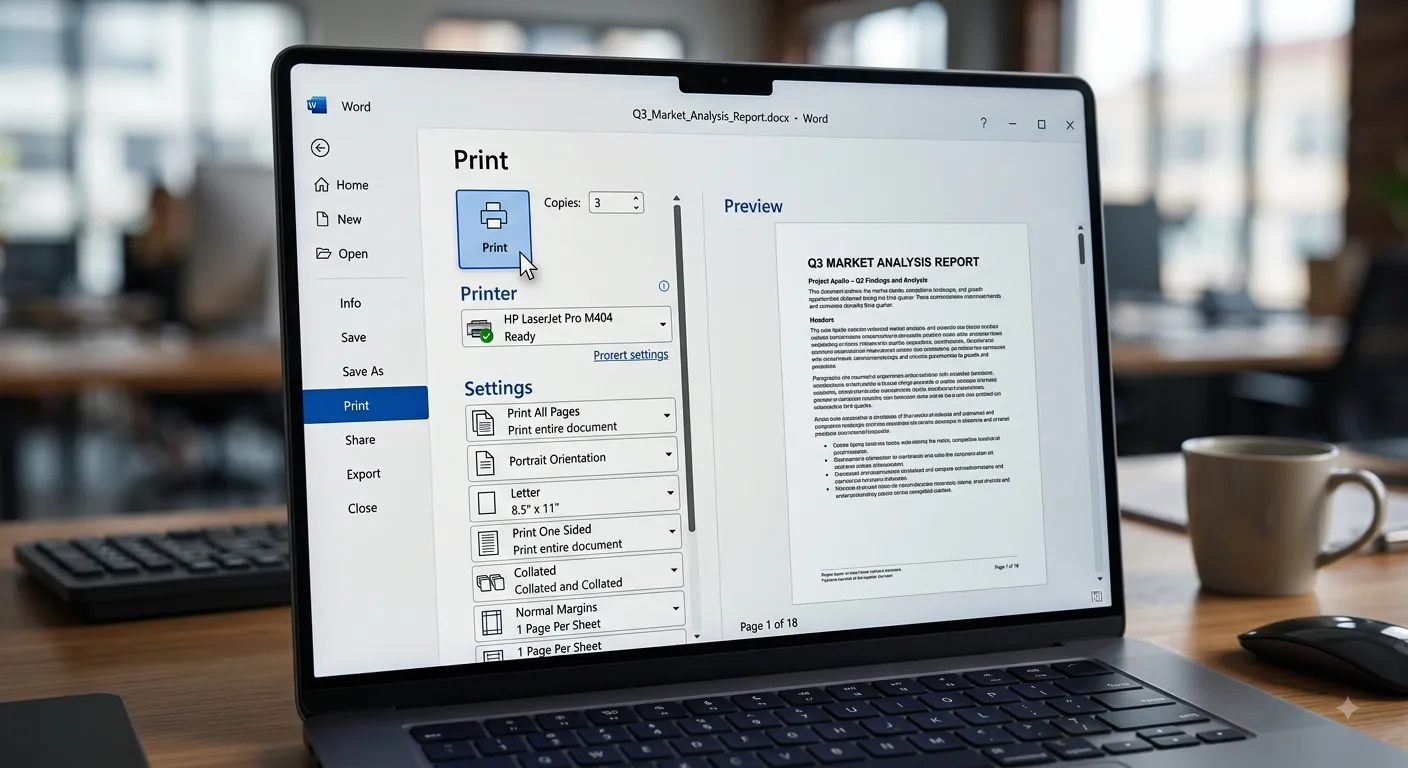
Printing Documents
Printing is the process of producing a physical copy of a Microsoft Word document using a printer. Microsoft Word provides several printing options that allow users to select a printer, specify pages, choose the number of copies and configure other printing settings before producing the final document.
What is Printing?
Printing converts the digital content of a Word document into a physical copy on paper or another supported medium. Before printing, users can review the document and configure settings such as page range, number of copies, orientation and paper size.
Select Printer
Choose the printer that will produce the document.
Print Preview
Check how the document will appear before printing.
Select Pages
Print the entire document or only selected pages.
Choose Copies
Specify how many copies of the document are required.
Print Preview
Print Preview allows users to see how a document will look when printed. It is useful for checking page breaks, margins, alignment, images, tables and other content before sending the document to the printer.
| Preview Check | What to Verify |
|---|---|
| Page Layout | Check the overall arrangement of content on each page. |
| Margins | Make sure content is positioned correctly within the page. |
| Page Breaks | Check that content is divided between pages correctly. |
| Images | Verify that pictures and graphics appear correctly. |
| Tables | Make sure tables fit properly within the printable area. |
Basic Printing Steps
1. Open the Word
document.

2. Click File.

3. Select Print.

4. Choose the required
printer.

5. Check Print Preview.

6. Select the required
pages and number of
copies.

7. Configure additional
printing options.

8. Click Print.
Printing Options
Microsoft Word provides several options that help users control exactly how a document is printed. These options can be adjusted before clicking the Print button.
Number of Copies
The Copies option determines how many copies of the document Word should send to the printer. For example, entering 3 prints three copies of the selected document.
Open File → Print.

Select the printer.

Set Copies to:

3

Check the preview.

Click Print.
Selecting Pages to Print
You do not always need to print the entire document. Microsoft Word allows you to print all pages, the current page or a specific range of pages.
| Page Selection | Purpose |
|---|---|
| Print All Pages | Prints every page in the document. |
| Print Current Page | Prints the page currently being viewed. |
| Custom Print | Allows specific pages or page ranges to be entered. |
| Page Range | Prints only the pages specified by the user. |
Open File → Print.

Choose Custom Print.

Enter:

2-5

Click Print.

Only pages 2 through 5
will be sent to the printer.
Print Orientation
Orientation controls the direction in which the page is printed. Microsoft Word provides two common orientation options: Portrait and Landscape.
Portrait
The page is taller than it is wide and is commonly used for letters and reports.
Landscape
The page is wider than it is tall and is useful for wide tables and charts.
| Orientation | Best Used For |
|---|---|
| Portrait | Letters, essays, reports and normal text documents. |
| Landscape | Wide tables, charts, diagrams and horizontally arranged content. |
Paper Size
The Paper Size setting determines the physical size of the paper used by the printer. The selected paper size should match the paper loaded into the printer.
| Paper Size | Common Use |
|---|---|
| A4 | Commonly used for general documents, reports and assignments. |
| Letter | Commonly used for documents prepared for Letter-size paper. |
| Legal | Used when a longer page format is required. |
| Custom Size | Used when a specific paper dimension is required and supported. |
Number of Copies
The Copies option determines how many copies of the document Word should send to the printer. For example, entering 3 prints three copies of the selected document.
Open File → Print.

Select the printer.

Set Copies to:

3

Check the preview.

Click Print.
Selecting Pages to Print
You do not always need to print the entire document. Microsoft Word allows you to print all pages, the current page or a specific range of pages.
| Page Selection | Purpose |
|---|---|
| Print All Pages | Prints every page in the document. |
| Print Current Page | Prints the page currently being viewed. |
| Custom Print | Allows specific pages or page ranges to be entered. |
| Page Range | Prints only the pages specified by the user. |
Open File → Print.

Choose Custom Print.

Enter:

2-5

Click Print.

Only pages 2 through 5
will be sent to the printer.
Print Orientation
Orientation controls the direction in which the page is printed. Microsoft Word provides two common orientation options: Portrait and Landscape.
Portrait
The page is taller than it is wide and is commonly used for letters and reports.
Landscape
The page is wider than it is tall and is useful for wide tables and charts.
| Orientation | Best Used For |
|---|---|
| Portrait | Letters, essays, reports and normal text documents. |
| Landscape | Wide tables, charts, diagrams and horizontally arranged content. |
Paper Size
The Paper Size setting determines the physical size of the paper used by the printer. The selected paper size should match the paper loaded into the printer.
| Paper Size | Common Use |
|---|---|
| A4 | Commonly used for general documents, reports and assignments. |
| Letter | Commonly used for documents prepared for Letter-size paper. |
| Legal | Used when a longer page format is required. |
| Custom Size | Used when a specific paper dimension is required and supported. |
Margins
Margins are the blank spaces around the edges of a page. Proper margins ensure that text and other content do not extend beyond the printable area of the paper.
Top Margin
Controls the space between the top edge of the paper and the document content.
Bottom Margin
Controls the space between the bottom edge of the paper and the document content.
Left Margin
Controls the space between the left edge of the paper and the document content.
Right Margin
Controls the space between the right edge of the paper and the document content.
Print Margins and Layout
Before printing, check the page margins and layout to make sure all important content fits within the printable area. This is especially important for documents containing tables, pictures and wide content.
1. Open the Layout tab.

2. Click Margins.

3. Select a suitable
margin option.

4. Review the document
layout.

5. Open File → Print.

6. Check the Print
Preview.

7. Print the document
when the layout looks
correct.
Collated and Uncollated Printing
When printing multiple copies of a multi-page document, Word can organize the printed pages as complete sets or as groups of individual pages. This is controlled by the Collated option.
| Option | Printing Order |
|---|---|
| Collated | Prints complete sets in the order of the document pages. |
| Uncollated | Prints multiple copies of each page together. |
Document:

Page 1
Page 2
Page 3

Copies:

2

Collated:

1, 2, 3
1, 2, 3
Printing Multiple Pages per Sheet
Word can arrange multiple document pages on a single sheet of paper. This option can reduce paper usage and is useful for handouts, drafts and documents where smaller page previews are acceptable.
| Pages per Sheet | Typical Use |
|---|---|
| 1 Page | Normal full-size document printing. |
| 2 Pages | Useful for compact handouts and review copies. |
| 4 Pages | Useful for drafts and compact reference material. |
| More Pages | Useful when reducing paper consumption is more important than readability. |
Common Printing Problems
Wrong Printer
Make sure the correct printer is selected before printing.
Incorrect Layout
Check margins, orientation and paper size in Print Preview.
Missing Content
Check whether content extends outside the printable area.
Wrong Page Range
Verify the selected pages before sending the document to print.
Troubleshooting Printing Problems
If a document does not print correctly, check the printer selection, paper settings, page range, document layout and printer status. Most printing problems can be identified by reviewing the Print Preview and the selected print settings before printing again.
| Problem | Possible Solution |
|---|---|
| Nothing Prints | Check that the correct printer is selected and that the printer is ready. |
| Wrong Pages Print | Check the selected page range and print settings. |
| Content is Cut Off | Check margins, paper size, orientation and the printable area. |
| Wrong Paper Size | Make sure the Word document and printer use the appropriate paper size. |
| Layout Looks Different | Review the document using Print Preview before printing. |
Pre-Printing Checklist
- Save the document before printing.
- Check the document for spelling and formatting errors.
- Open Print Preview and examine every page.
- Make sure the correct printer is selected.
- Check the paper size and orientation.
- Verify the page margins and layout.
- Choose the required number of copies.
- Check the page range before printing.
- Make sure the required paper is available in the printer.
- Confirm that the final document looks correct before clicking Print.
Practical Example — Printing a College Assignment
Open the assignment.

        ↓

Check spelling and
formatting.

        ↓

Check page margins.

        ↓

Set paper size to A4.

        ↓

Choose Portrait
orientation.

        ↓

Open File → Print.

        ↓

Select the printer.

        ↓

Check Print Preview.

        ↓

Set the required
number of copies.

        ↓

Click Print.
Tips for Saving Paper and Ink
Print Only Required Pages
Select specific pages instead of printing the entire document when appropriate.
Multiple Pages per Sheet
Use multiple pages per sheet when smaller text is acceptable.
Use Print Preview
Check the document before printing to avoid unnecessary reprints.
Review Before Printing
Correct errors digitally before producing the physical copy.
Useful Printing Shortcuts
| Shortcut | Function |
|---|---|
| Ctrl + P | Open the Print screen. |
| Ctrl + S | Save the document before printing. |
| Ctrl + Z | Undo the previous change. |
| Ctrl + Y | Redo the previous change. |
Key Points to Remember
Select Printer
Always verify that the correct printer is selected before printing.
Preview First
Use Print Preview to check the appearance of every page.
Check Settings
Verify paper size, orientation, margins, copies and page range.
Final Review
Make sure the document is correct before producing the printed copy.
Important Printing Settings
| Setting | What It Controls |
|---|---|
| Printer | Determines which available printer receives the document. |
| Copies | Determines how many copies are printed. |
| Pages | Determines which pages are printed. |
| Orientation | Controls Portrait or Landscape page direction. |
| Paper Size | Determines the physical size of the paper. |
| Margins | Controls the blank space around the document content. |
| Pages per Sheet | Controls how many document pages are placed on one sheet. |
| Collation | Controls the order of pages when multiple copies are printed. |
Frequently Asked Questions
How do I print a Word document?
Open the document, select File → Print, choose the printer, check the print settings and preview, then click Print.
How can I print only selected pages?
Use the page selection or custom print option in the Print screen and enter the required page numbers or ranges.
What is Print Preview?
Print Preview shows how the document is expected to appear on paper before it is sent to the printer.
What is the difference between Portrait and Landscape?
Portrait displays a page vertically, while Landscape displays a page horizontally.
Why should I check the paper size?
The document and printer should use compatible paper settings so that the printed layout appears correctly.
Final Printing Workflow
Prepare the Document
        ↓
Save the Document
        ↓
Check Spelling & Formatting
        ↓
Open File → Print
        ↓
Select the Printer
        ↓
Check Print Preview
        ↓
Select Pages
        ↓
Set Number of Copies
        ↓
Check Paper Size
        ↓
Check Orientation & Margins
        ↓
Review Print Settings
        ↓
Click Print
        ↓
Check the Printed Document
Conclusion
Printing Documents is an important part of working with Microsoft Word. Before printing, users should review the document carefully and check the printer, page range, number of copies, paper size, orientation, margins and other settings. Print Preview helps identify layout problems before paper and ink are used. By following a proper printing workflow, users can produce accurate, well-formatted and professional physical copies of their documents.