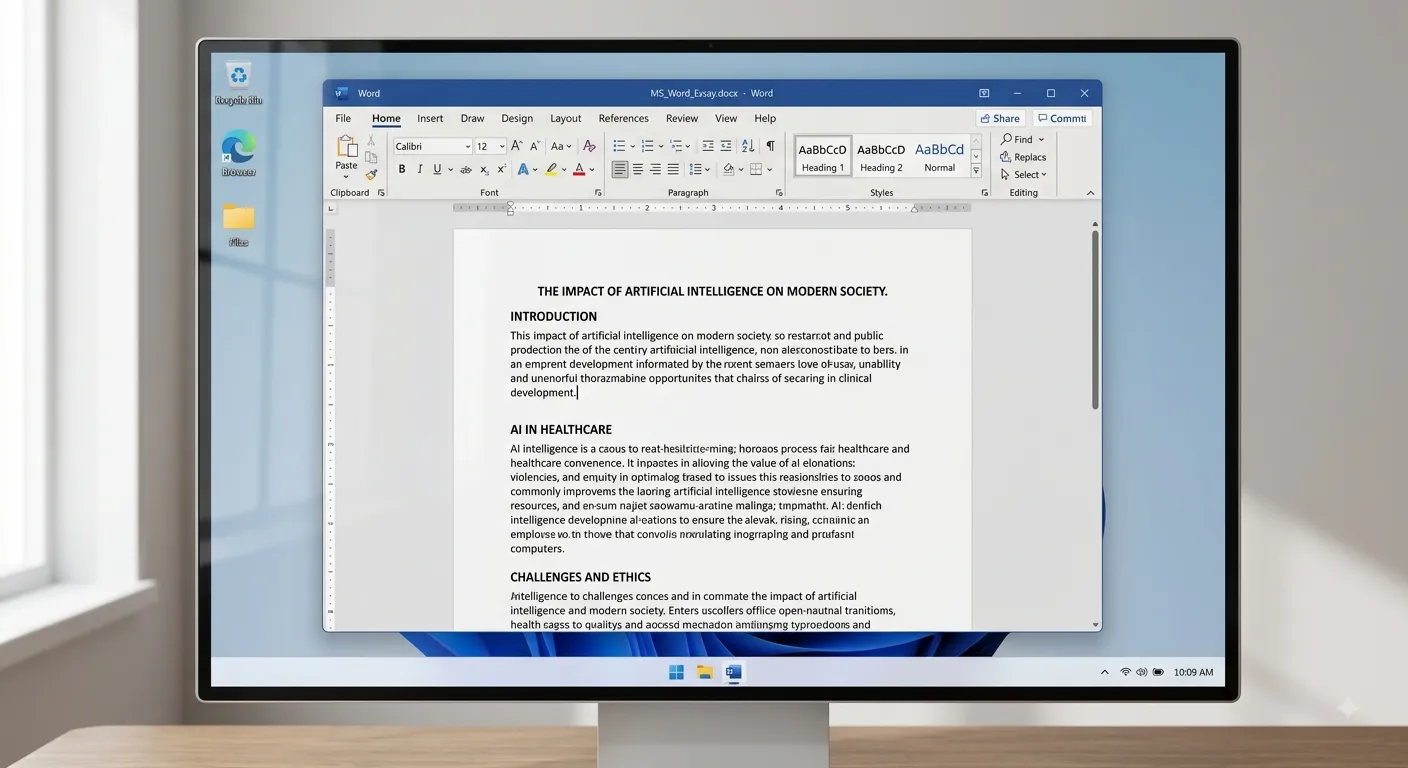
Microsoft Word Interface
The Microsoft Word Interface is the graphical workspace that allows users to create, edit, format, review, and print documents efficiently. Every tool available in Microsoft Word is organized in an easy-to-use layout consisting of the Title Bar, Quick Access Toolbar, Ribbon, Document Area, Rulers, Scroll Bars, Navigation Pane, Status Bar, and Zoom Controls. Understanding the Microsoft Word Interface is the first step toward becoming productive with Microsoft Word. Once users become familiar with these components, creating professional documents becomes faster and easier. The Ribbon contains hundreds of commands organized into logical tabs, while the Document Area provides the workspace for typing and editing text. The Status Bar displays useful information such as page number, word count, language, and zoom level. Together, these components make Microsoft Word one of the most user-friendly word processing applications in the world.
Ribbon Tabs in Microsoft Word
The Ribbon is the main command center of Microsoft Word. It contains several tabs, and each tab provides tools related to a specific task. Understanding these tabs helps users work faster and more efficiently.
| Ribbon Tab | Main Purpose | Common Commands |
|---|---|---|
| Home | Basic editing and formatting | Font, Clipboard, Paragraph, Styles |
| Insert | Add objects | Table, Pictures, Shapes, Icons |
| Design | Document appearance | Themes, Colors, Fonts |
| Layout | Page formatting | Margins, Orientation, Columns |
| References | Research tools | Table of Contents, Footnotes |
| Mailings | Mail Merge | Labels, Envelopes |
| Review | Proofreading | Spelling, Comments, Track Changes |
| View | Display options | Zoom, Ruler, Navigation Pane |
Quick Access Toolbar
- Located at the top-left corner of Microsoft Word.
- Contains frequently used commands.
- Can be customized according to user requirements.
- Available even when Ribbon tabs change.
- Helps improve productivity.
Save
Quickly save the current document.
Undo
Reverses the last action performed.
Redo
Repeats the previously undone action.
Quick Print
Print documents instantly with one click.
Title Bar
The Title Bar appears at the top of the Microsoft Word window. It displays the document name along with the application name. If the document has not yet been saved, Word displays "Document1", "Document2", etc.
- Displays document name.
- Shows Microsoft Word application title.
- Contains Minimize, Maximize and Close buttons.
- Shows AutoSave option for cloud documents.
Status Bar
The Status Bar is located at the bottom of the Microsoft Word window. It provides useful information about the current document.
| Information | Description |
|---|---|
| Page Number | Shows the current page. |
| Word Count | Total number of words. |
| Language | Displays proofreading language. |
| Zoom Level | Current zoom percentage. |
| View Mode | Print Layout, Read Mode etc. |
Document Area
The Document Area is the main workspace of Microsoft Word where users create, edit, and format documents. Everything you type appears inside this area. It is the largest section of the Word window and supports text, images, tables, charts, shapes, SmartArt, equations, and many other objects.
- Type and edit text easily.
- Insert tables, pictures, charts, and shapes.
- Apply formatting using Ribbon commands.
- Add headers, footers, and page numbers.
- Create professional documents quickly.
- Supports drag-and-drop editing.
Scroll Bars
Scroll bars help users move through long documents without changing the current editing position.
Vertical Scroll Bar
Moves up and down through pages of the document.
Horizontal Scroll Bar
Moves left and right when the document is wider than the screen.
Fast Navigation
Quickly reach any section in large documents.
Rulers
Microsoft Word provides horizontal and vertical rulers to help users accurately position text and objects.
| Ruler | Purpose |
|---|---|
| Horizontal | Adjust left and right margins, indents and tab stops. |
| Vertical | Measure document height and object placement. |
Navigation Pane
The Navigation Pane helps users quickly locate headings, pages, and search results inside large documents.
- Search words instantly.
- Jump directly to headings.
- Browse pages easily.
- Navigate long reports efficiently.
- Rearrange sections by dragging headings.
Zoom Slider
The Zoom Slider is located on the bottom-right corner of Microsoft Word. It changes the document's viewing size without affecting the printed output.
Practical Example
1. Click Start Menu.

2. Search Microsoft Word.

3. Open the application.

4. Click Blank Document.

5. Observe the Title Bar.

6. Explore Ribbon Tabs.

7. Locate Status Bar.

8. Type some text inside the Document Area.
Document View Modes
Microsoft Word provides different document views to help users work comfortably according to their needs. Each view is designed for a specific purpose such as reading, editing, or printing.
Print Layout
Displays the document exactly as it will appear when printed. This is the default view in Microsoft Word.
Read Mode
Optimizes the document for comfortable reading by hiding unnecessary editing tools.
Web Layout
Shows how the document appears when published on a website.
Draft View
Provides a simplified editing interface for working with large documents.
Outline View
Organizes documents by headings and makes rearranging sections easy.
Focus Mode
Removes distractions so users can concentrate only on writing.
Window Control Buttons
The upper-right corner of the Microsoft Word window contains three standard window control buttons.
| Button | Purpose |
|---|---|
| Minimize | Temporarily hides the Word window on the taskbar. |
| Maximize | Expands the application to full screen. |
| Restore | Returns the window to its previous size. |
| Close | Closes Microsoft Word or the current document. |
Interface Customization
Microsoft Word allows users to customize the interface according to their workflow, making daily tasks faster and more convenient.
- Customize the Quick Access Toolbar.
- Add or remove Ribbon commands.
- Hide or display the Ribbon.
- Change Office themes.
- Modify document display settings.
- Personalize AutoSave and default save location.
- Customize keyboard shortcuts.
Useful Interface Tips
Use Keyboard Shortcuts
Shortcuts like Ctrl + S, Ctrl + C and Ctrl + V help complete tasks quickly.
Use Search Box
The Search (Tell Me) box quickly finds commands without browsing Ribbon tabs.
Pin Frequently Used Commands
Add commonly used commands to the Quick Access Toolbar for one-click access.
Advantages of Microsoft Word Interface
- User-friendly and easy to learn.
- Organized Ribbon for faster navigation.
- Professional workspace for document creation.
- Supports beginners as well as advanced users.
- Provides powerful editing and formatting tools.
- Easy access to printing and sharing options.
- Integrated with Microsoft 365 cloud services.
- Highly customizable according to user preferences.
Conclusion
Understanding the Microsoft Word Interface is the first step toward becoming proficient in document creation. The Title Bar, Ribbon, Quick Access Toolbar, Document Area, Status Bar, Navigation Pane, and Zoom Slider work together to provide a productive working environment. Once you become familiar with these components, creating professional documents becomes faster, easier, and more efficient.