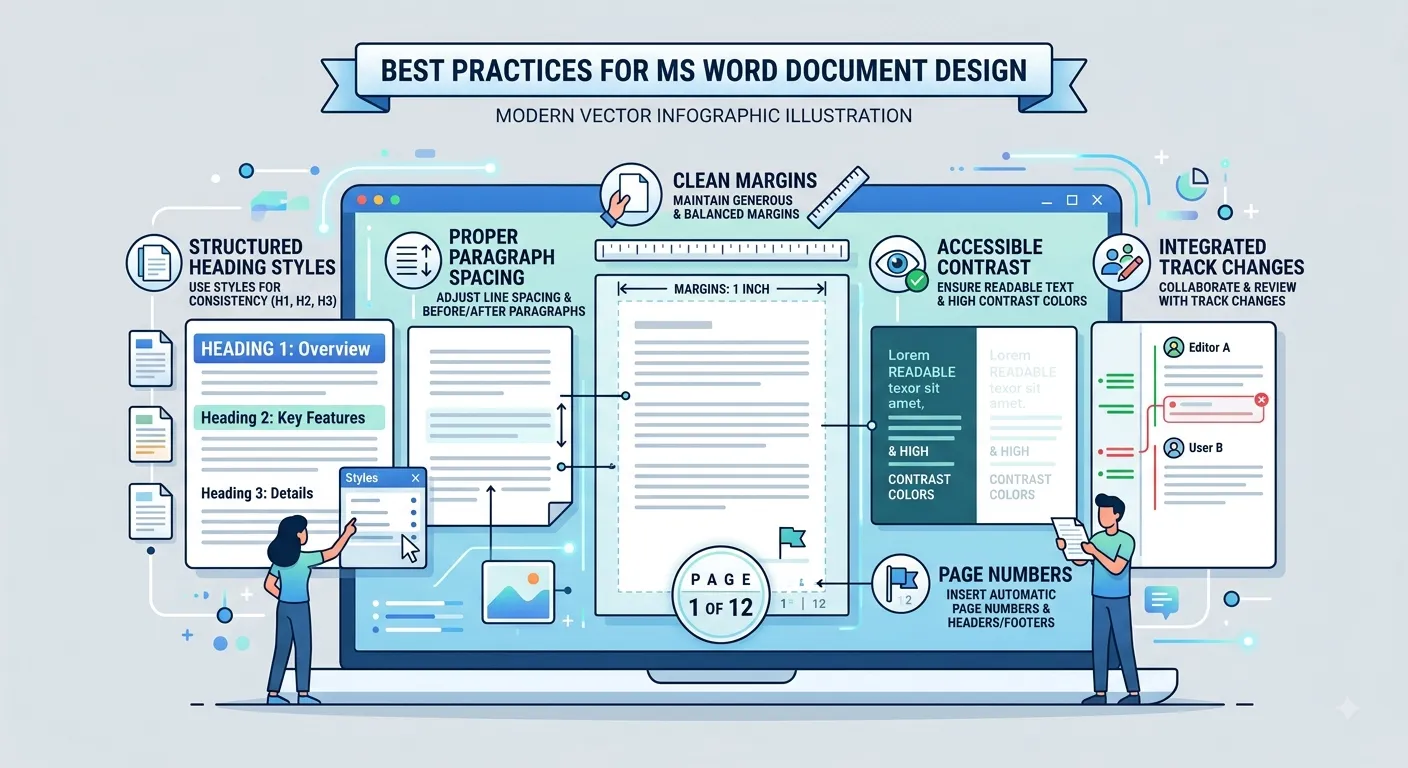
Best Practices
Microsoft Word provides many tools for creating professional documents. Following good practices while creating, editing, formatting, saving and sharing documents helps maintain consistency, reduces errors and makes documents easier to read and manage.
What are Best Practices?
Best practices are recommended methods of working that help users create accurate, organized, readable and professional documents. They are especially useful when documents are large, frequently edited or shared with other people.
Consistency
Keep formatting and document structure consistent.
Accuracy
Review content carefully before finalizing the document.
Organization
Use clear file names and organized folders.
Quality
Check the final document before printing or sharing it.
Start with a Clear Document Structure
Before adding large amounts of content, decide how the document should be organized. A clear structure makes information easier to understand and simplifies future editing.
| Document Element | Recommended Practice |
|---|---|
| Title | Use a clear title that describes the document. |
| Headings | Use headings to divide content into logical sections. |
| Paragraphs | Keep paragraphs focused on a specific idea. |
| Lists | Use numbered or bulleted lists when they improve readability. |
| Tables | Use tables when information needs to be presented in rows and columns. |
Use Styles for Consistent Formatting
Styles are useful for applying consistent formatting to headings, paragraphs and other document elements. Instead of manually changing the formatting of every heading, use appropriate Word styles whenever possible.
Consistent Appearance
Apply the same formatting throughout similar content.
Better Organization
Styles help structure long documents.
Easy Changes
Changing a style can update multiple elements consistently.
Navigation
Heading styles can help organize and navigate long documents.
Maintain Consistent Formatting
| Formatting Area | Best Practice |
|---|---|
| Fonts | Use a limited number of appropriate fonts throughout the document. |
| Font Size | Use readable and consistent sizes for similar types of content. |
| Colors | Use colors consistently and avoid unnecessary decoration. |
| Alignment | Keep similar content aligned consistently. |
| Spacing | Use consistent paragraph and line spacing. |
| Headings | Use a consistent visual hierarchy for headings and subheadings. |
Save Your Work Regularly
Saving regularly helps prevent loss of work caused by accidental closure, application problems or other unexpected events. Use Ctrl + S frequently while working on important documents.
Start the document
        ↓
Save the document
        ↓
Continue editing
        ↓
Press Ctrl + S regularly
        ↓
Save before closing
        ↓
Keep the final version
in an organized location
Organize Files and Folders
Use meaningful file names and organized folders to make documents easy to locate. Avoid keeping many unrelated files in a single folder.
| Good Practice | Example |
|---|---|
| Clear Name | Computer_Networks_Report.docx |
| Version | Computer_Networks_Report_v2.docx |
| Date | Project_Report_2026-08-12.docx |
| Folder | College → Projects → Reports |
Proofread and Check Your Document
A professional document should always be reviewed before it is submitted, printed or shared. Microsoft Word provides several tools that can help identify spelling, grammar and formatting problems.
| Check | Recommended Practice |
|---|---|
| Spelling | Run the spelling checker and review suggested corrections. |
| Grammar | Review grammar suggestions and make appropriate corrections. |
| Punctuation | Check commas, full stops, quotation marks and other punctuation. |
| Consistency | Check that terminology, capitalization and formatting are consistent. |
| Content | Read the document carefully to identify missing or incorrect information. |
Use Find and Replace Carefully
The Find and Replace feature is useful when the same word or phrase needs to be located or changed in multiple places. However, replacements should always be reviewed because an automatic replacement may affect text that was not intended to be changed.
Open Find and Replace
        ↓
Enter the text to find
        ↓
Enter the replacement text
        ↓
Review the matches
        ↓
Replace individually
or replace all when appropriate
        ↓
Review the document again
Use Images and Graphics Properly
Images, shapes, charts and other graphics can improve a document when they support the content. Too many unnecessary graphics can make a document difficult to read and may increase its file size.
Use Relevant Images
Choose graphics that support the information being presented.
Maintain Proportion
Avoid stretching images and keep their proportions appropriate.
Align Properly
Position images consistently with the surrounding content.
Check Readability
Make sure graphics do not interfere with important text.
Create Readable Tables
| Table Practice | Recommendation |
|---|---|
| Headers | Use clear headings for columns and rows. |
| Alignment | Align similar types of information consistently. |
| Content | Keep table information concise and organized. |
| Spacing | Provide enough space so information is easy to read. |
| Size | Avoid tables that are unnecessarily large or crowded. |
Use Headers, Footers and Page Numbers
Long or formal documents often benefit from headers, footers and page numbers. These elements provide useful information without taking attention away from the main content.
| Element | Useful Information |
|---|---|
| Header | Document title, section name or organization name. |
| Footer | Author information, document information or other supporting details. |
| Page Number | Helps readers navigate multi-page documents. |
Choose the Appropriate File Format
The file format should match the purpose of the document. Keep an editable Word version when future editing may be required, and consider exporting a final version to PDF when preserving the appearance of the document is important.
| Purpose | Suitable Format |
|---|---|
| Future Editing | Microsoft Word document such as .docx. |
| Final Sharing | PDF can be useful when consistent appearance is important. |
| Printing | Review the final document and print settings before printing. |
Protect Important Documents
Important documents should be handled carefully. Depending on the document and version of Word being used, available protection features can help control editing or access.
- Keep important documents in a secure and organized location.
- Maintain backup copies of important work.
- Use appropriate document protection features when required.
- Avoid sharing confidential documents unnecessarily.
- Review sharing and access settings before distributing a document.
Keep Backup Copies
Original Document
        ↓
Save the latest version
        ↓
Create a backup copy
        ↓
Store it in another
safe location
        ↓
Update the backup
when major changes
are made
Review Comments and Track Changes
When a document is created or edited by multiple people, comments and Track Changes can make collaboration easier. Review changes carefully before accepting or rejecting them.
| Feature | Best Practice |
|---|---|
| Comments | Use comments to provide suggestions, questions or explanations. |
| Track Changes | Use tracked changes when editing a document that needs review. |
| Accept Changes | Review changes before accepting them. |
| Reject Changes | Reject changes that should not become part of the final document. |
| Final Review | Check the document again after all changes have been reviewed. |
Best Practices for Collaborative Documents
- Use clear file names so collaborators know which document they are opening.
- Use comments for questions, explanations and suggestions.
- Use Track Changes when edits need to be reviewed.
- Review other people's changes before accepting or rejecting them.
- Remove unnecessary comments before creating the final version.
- Perform a final proofreading after all revisions are completed.
Check the Document Before Printing
A document that looks correct on screen should still be checked before printing. Review page layout, margins, page breaks, headers, footers, images and tables.
Check spelling and grammar
        ↓
Check page numbers
        ↓
Check headers and footers
        ↓
Check margins
        ↓
Check page breaks
        ↓
Check images and tables
        ↓
Open Print Preview
        ↓
Confirm printer settings
        ↓
Print the document
Final Document Quality Checklist
| Area | Final Check |
|---|---|
| Content | Make sure all required information is included and accurate. |
| Spelling | Check for spelling errors. |
| Grammar | Review grammar and sentence structure. |
| Formatting | Ensure fonts, headings, spacing and alignment are consistent. |
| Images | Make sure images are correctly positioned and readable. |
| Tables | Check table alignment, headings and readability. |
| Page Layout | Check margins, page breaks and overall page appearance. |
| Headers & Footers | Verify that header and footer information is correct. |
| Page Numbers | Confirm that page numbers appear correctly. |
| Final Format | Use the appropriate file format for the intended purpose. |
Keep Documents Simple and Professional
A professional document does not need excessive colors, fonts, images or decorative elements. The design should support the content rather than distract the reader.
Clear Purpose
Every element should contribute to the purpose of the document.
Readable Content
Use appropriate spacing, headings and formatting.
Simple Design
Avoid unnecessary decorative formatting.
Visual Balance
Keep text, images and white space balanced.
Use Keyboard Shortcuts for Efficiency
Keyboard shortcuts can reduce repetitive mouse operations and make common tasks faster. Users should gradually incorporate frequently used shortcuts into their normal workflow.
| Shortcut | Use |
|---|---|
| Ctrl + S | Save the document regularly. |
| Ctrl + Z | Undo an unwanted action. |
| Ctrl + C | Copy selected content. |
| Ctrl + V | Paste copied content. |
| Ctrl + F | Find text quickly. |
| Ctrl + P | Open the Print screen. |
Complete Best Practices Workflow
Plan the document
        ↓
Create a clear structure
        ↓
Use appropriate styles
        ↓
Enter and format content
        ↓
Insert tables and graphics
when necessary
        ↓
Save the document regularly
        ↓
Proofread the content
        ↓
Review comments and
tracked changes
        ↓
Check page layout
        ↓
Save the final version
        ↓
Export or print as required
        ↓
Keep a backup copy
Common Microsoft Word Mistakes to Avoid
| Mistake | Better Practice |
|---|---|
| Using Too Many Fonts | Use a small number of consistent and readable fonts. |
| Manual Formatting Everywhere | Use Word styles and consistent formatting where appropriate. |
| Ignoring Spelling Errors | Run spelling and grammar checks before finalizing the document. |
| Overusing Colors | Use colors purposefully and maintain a professional appearance. |
| Poor File Names | Use descriptive names that make documents easy to identify. |
| Not Saving Regularly | Save frequently and maintain backup copies of important work. |
| Ignoring Page Layout | Review margins, page breaks, headers, footers and page numbers. |
| Too Much Decoration | Keep the design simple and make readability the priority. |
| Skipping Final Review | Perform a complete review before printing or sharing. |
Best Practices for Students
Students frequently create assignments, project reports, practical records and presentations using Microsoft Word. Following a consistent workflow can improve the quality and readability of academic documents.
Use a Clear Title
Include an appropriate title and relevant document information.
Organize Sections
Use headings and subheadings to separate different topics.
Number Pages
Use page numbers for longer assignments and reports.
Proofread
Check spelling, grammar and formatting before submission.
Best Practices for Professional Documents
| Area | Professional Practice |
|---|---|
| Document Structure | Use a logical structure with clear headings and sections. |
| Typography | Use readable fonts and consistent font sizes. |
| Branding | Use organization-specific colors, logos and formatting when required. |
| Tables | Present data in clear and properly aligned tables. |
| References | Keep citations and reference information organized. |
| Review | Complete proofreading and quality checks before distribution. |
| File Management | Use descriptive file names and maintain appropriate versions. |
Improve Document Accessibility
A good document should be easy for as many readers as possible to understand and navigate. Simple formatting choices can improve accessibility and readability.
- Use clear and descriptive headings.
- Maintain sufficient contrast between text and background.
- Avoid using color as the only way to communicate important information.
- Use descriptive alternative text for meaningful images when appropriate.
- Keep paragraphs and sentences reasonably clear and readable.
- Use lists and tables when they make information easier to understand.
- Maintain a logical reading order.
Keep Document Size Manageable
Documents containing many high-resolution images, embedded objects or unnecessary elements can become large and difficult to share. Review the contents of a document and remove items that are not required.
| Problem | Recommended Action |
|---|---|
| Large Images | Use appropriately sized images when very high resolution is unnecessary. |
| Unused Content | Remove unnecessary images, text and objects. |
| Duplicate Elements | Remove duplicate content that is no longer required. |
| Old Versions | Keep useful versions organized instead of placing every copy in one folder. |
Best Practices When Sharing Documents
Review the document
        ↓
Check spelling and grammar
        ↓
Review comments
        ↓
Review tracked changes
        ↓
Check page layout
        ↓
Confirm the correct version
        ↓
Choose the appropriate
file format
        ↓
Check for unnecessary
private or internal information
        ↓
Share the document
Final Best Practices Checklist
- Plan the document before creating large amounts of content.
- Use a clear and logical document structure.
- Use styles for consistent headings and formatting.
- Keep fonts, spacing, alignment and colors consistent.
- Use tables, images and graphics only when they support the content.
- Save the document regularly.
- Use meaningful file names and organized folders.
- Keep backup copies of important documents.
- Check spelling, grammar and punctuation.
- Use Find and Replace carefully.
- Review comments and Track Changes before finalizing collaborative documents.
- Check headers, footers and page numbers.
- Review page layout before printing.
- Choose the appropriate file format for the intended purpose.
- Keep the final document simple, readable and professional.
- Check the document before sharing it with others.
Chapter Summary
Best practices help users create Microsoft Word documents that are organized, accurate, readable and professional. A good workflow begins with planning and document structure, followed by consistent formatting, careful editing and regular saving. Before a document is printed, exported or shared, it should be thoroughly reviewed for content, formatting, layout and overall quality.
The most important habit is to review the document before considering it final. Combining proper formatting, organized file management, proofreading, backups and efficient Word features can significantly improve the quality of everyday documents.
Key Takeaways
Plan
Start with a clear structure and purpose.
Format
Maintain consistent and readable formatting.
Review
Proofread and check the final document carefully.
Protect
Save regularly and maintain backups.
Organize
Use meaningful file names and folder structures.
Improve
Use Word features and shortcuts to work efficiently.
Frequently Asked Questions
Why are best practices important in Microsoft Word?
Best practices help users create documents that are organized, readable, accurate and professional. They also make documents easier to edit, review, print and share.
Why should I use Styles in Microsoft Word?
Styles help maintain consistent formatting throughout a document. They also make it easier to update headings and other document elements consistently.
How often should I save my Word document?
Save your document regularly, especially after making important changes. Using Ctrl + S frequently is a simple way to reduce the risk of losing recent work.
Why should I use meaningful file names?
Meaningful file names make documents easier to identify, organize and locate. They are especially useful when many versions of a document exist.
Should I keep a backup of my Word document?
Yes. Important documents should have backup copies stored in an appropriate additional location to reduce the risk of losing work.
What should I check before printing a document?
Check spelling, grammar, page numbers, headers, footers, margins, page breaks, images, tables and the overall page layout. It is also useful to review the document using Print Preview.
When should I use PDF instead of a Word document?
A Word document is useful when further editing is expected. PDF can be useful when sharing or distributing a final document where preserving its appearance is important.
How can I make a Word document more professional?
Use a clear structure, consistent formatting, appropriate styles, readable fonts, proper spacing and accurate content. Proofread the document and perform a final layout check before sharing or printing.
Practical Exercise
Create a professional Microsoft Word document by applying the best practices covered in this chapter.
1. Create a new Word document.

2. Add a clear title.

3. Create at least three
   sections using headings.

4. Apply consistent styles
   to headings and paragraphs.

5. Add a suitable table.

6. Insert one relevant image.

7. Add a header and footer.

8. Insert page numbers.

9. Check spelling and grammar.

10. Use Find and Replace
    to correct a repeated word.

11. Save the document with
    a meaningful file name.

12. Create a backup copy.

13. Review the complete
    document for formatting
    and layout.

14. Export the final version
    to PDF if required.

15. Open the final document
    and perform one last review.
Self-Assessment
| Question | Yes / No |
|---|---|
| Can I create a clear document structure? | ☐ Yes ☐ No |
| Can I use Word styles consistently? | ☐ Yes ☐ No |
| Can I maintain consistent formatting? | ☐ Yes ☐ No |
| Do I save my work regularly? | ☐ Yes ☐ No |
| Can I organize files using meaningful names? | ☐ Yes ☐ No |
| Can I check spelling and grammar? | ☐ Yes ☐ No |
| Can I review Track Changes and comments? | ☐ Yes ☐ No |
| Can I check page layout before printing? | ☐ Yes ☐ No |
| Can I choose an appropriate file format? | ☐ Yes ☐ No |
| Can I perform a final quality check? | ☐ Yes ☐ No |
Professional Word Document Formula
PLAN
  +
STRUCTURE
  +
CONSISTENT FORMATTING
  +
ACCURATE CONTENT
  +
PROOFREADING
  +
ORGANIZATION
  +
BACKUP
  +
FINAL REVIEW
        ↓
PROFESSIONAL DOCUMENT
Chapter 21 Summary
Structure
Organize the document into clear sections and logical content.
Formatting
Use consistent styles, fonts, spacing and alignment.
Proofreading
Check spelling, grammar, punctuation and content.
Backup
Save regularly and keep appropriate backup copies.
Collaboration
Review comments and tracked changes carefully.
Final Review
Check the complete document before printing, exporting or sharing.
What's Next?
You have completed the Best Practices chapter. The next chapter focuses on applying Microsoft Word skills through a practical Mini Project. It will combine document creation, formatting, tables, images, page setup, headers, footers, page numbers, reviewing and final document preparation.