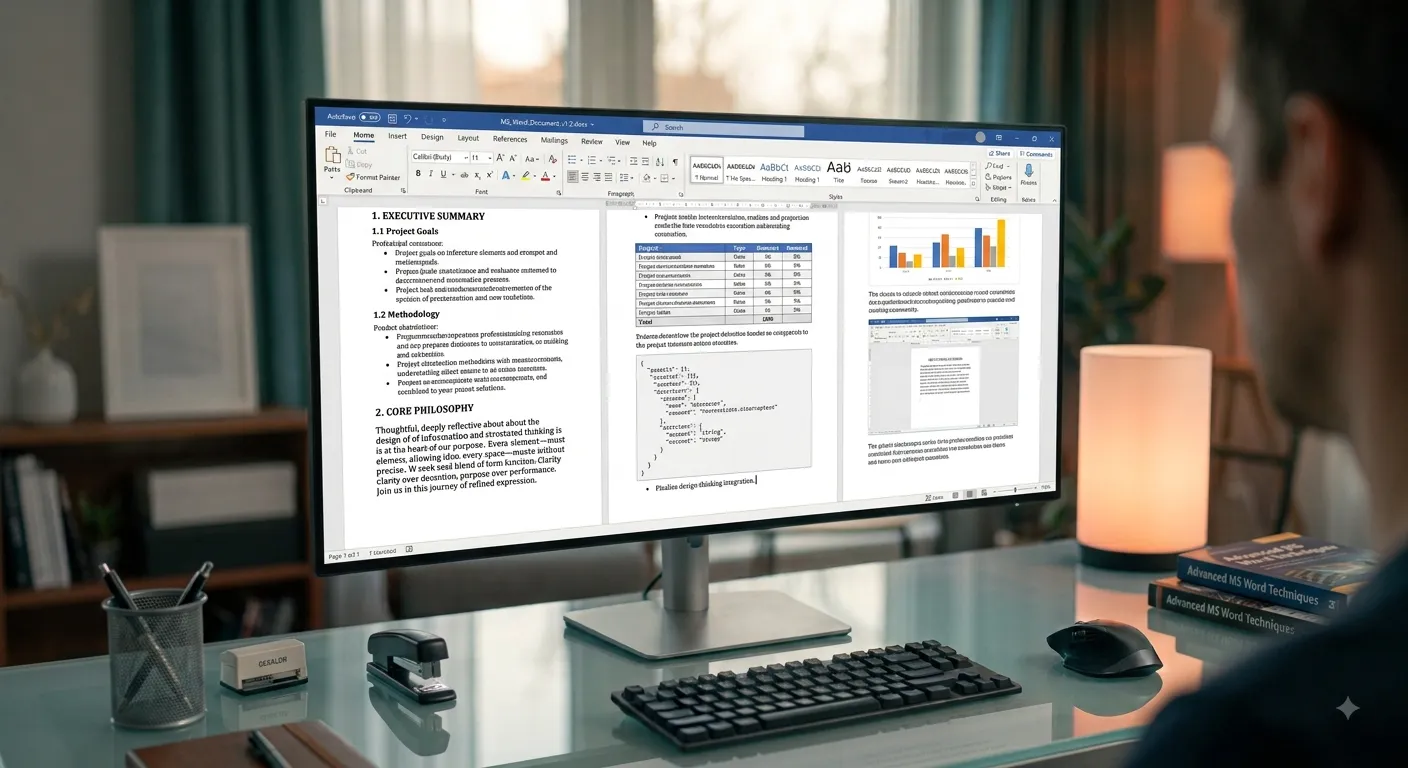
Creating Documents in Microsoft Word
Creating a document is the first and most important task in Microsoft Word. A document can be a letter, report, assignment, resume, brochure, certificate, project report, business proposal, invoice, or any other text-based file. Microsoft Word provides powerful tools that allow users to create professional-looking documents quickly and efficiently. Users can start with a blank document or choose from hundreds of professionally designed templates. Once the document is created, text, images, tables, charts, SmartArt, icons, and various formatting elements can be added to improve its appearance. Documents can then be saved, printed, shared, or exported as PDF files for easy distribution. Whether you are a student preparing assignments, a teacher creating study materials, or an office employee preparing official reports, Microsoft Word provides all the tools required to create attractive and professional documents with ease.
Ways to Create a Document
Blank Document
Create a completely new document from scratch using a blank page.
Templates
Use professionally designed templates for resumes, reports, letters, brochures and certificates.
Online Templates
Download modern templates directly from Microsoft Office Online.
Existing Document
Open and edit an existing Word document instead of creating a new one.
Shared Documents
Open files shared through OneDrive, Teams or Email.
Cloud Documents
Create documents that are automatically saved to OneDrive for easy access.
Steps to Create a New Document
- Open Microsoft Word from the Start Menu or Desktop.
- Select Blank Document from the Home screen.
- Place the cursor inside the document area.
- Start typing your content.
- Format the text using the Home tab.
- Insert pictures, tables or charts if required.
- Save the document using Ctrl + S.
- Print or export the document as PDF whenever necessary.
Common Types of Documents
| Document | Purpose | Example |
|---|---|---|
| Letter | Official communication | Application Letter |
| Report | Present detailed information | Project Report |
| Resume | Job applications | Professional CV |
| Assignment | Academic work | College Assignment |
| Certificate | Recognition documents | Participation Certificate |
| Invoice | Business billing | Sales Invoice |
Advantages of Creating Documents in Microsoft Word
Fast
Create professional documents within minutes using built-in tools.
Professional
Apply themes, styles and formatting for attractive documents.
Easy Sharing
Share documents through email, cloud storage and PDF export.
Saving Documents
Saving a document protects your work from being lost. Microsoft Word allows users to save documents on the computer, external storage devices, or cloud storage such as OneDrive. Saving frequently is considered one of the best practices while working with documents.
Quickly saves the current document.
Create another copy with a different file name or location.
Automatically saves cloud documents while you work.
Store documents safely online and access them anywhere.
Common File Formats
| Extension | Description | Usage |
|---|---|---|
| .docx | Default Microsoft Word format | Editing Documents |
| .doc | Older Word format | Compatibility |
| Portable Document Format | Sharing & Printing | |
| .txt | Plain Text File | Simple Notes |
| .rtf | Rich Text Format | Cross-platform Editing |
Editing Documents
- Edit existing text at any time.
- Insert new paragraphs wherever required.
- Delete unnecessary words and sentences.
- Move text using Cut, Copy and Paste.
- Undo mistakes using Ctrl + Z.
- Redo actions using Ctrl + Y.
- Use Find and Replace to edit large documents quickly.
- Use Spell Check to remove spelling and grammar mistakes.
Basic Formatting Tools
Example – Save a Document
1. Click File.

2. Select Save.

3. Choose the location.

4. Enter the file name.

5. Click Save.

Shortcut : Ctrl + S
Practical Examples
Title :
Computer Fundamentals

Name :
Rahul Sharma

Roll :
101

Department :
Computer Science

Semester :
Third Semester
ABC Technologies

Date :
20 July 2026

Dear Sir,

Thank you for your support.

Regards,

Manager
Useful Keyboard Shortcuts
| Shortcut | Action |
|---|---|
| Ctrl + N | Create New Document |
| Ctrl + O | Open Document |
| Ctrl + S | Save Document |
| Ctrl + P | Print Document |
| Ctrl + C | Copy |
| Ctrl + X | Cut |
| Ctrl + V | Paste |
| Ctrl + Z | Undo |
| Ctrl + Y | Redo |
| Ctrl + A | Select All |
| Ctrl + F | Find |
| Ctrl + H | Replace |
Best Practices
- Save your document regularly while working.
- Use meaningful file names.
- Keep headings and fonts consistent.
- Use templates for professional documents.
- Check spelling before printing.
- Preview the document before printing.
- Keep backup copies in OneDrive.
- Export important documents as PDF.
- Use clear formatting to improve readability.
- Organize long documents using headings.
Conclusion
Creating documents is one of the most fundamental skills in Microsoft Word. By understanding how to create, save, edit, and organize documents, users can produce professional assignments, reports, letters, resumes, and business documents efficiently. Regular practice with Microsoft Word helps improve productivity and document quality in academic, personal, and professional work.