
CSS Margin
The CSS Margin property creates space outside an element's border. It separates one element from its neighbors and is a fundamental part of the CSS Box Model — alongside padding, border, and content.
Margin Sub-properties
margin-top
Adds space above the element.
margin-right
Adds space to the right of the element.
margin-bottom
Adds space below the element.
margin-left
Adds space to the left of the element.
Shorthand
Combine all four — margin: 10px 20px 15px 5px;.
Auto
margin: 0 auto centers a block element horizontally.
CSS Margin Syntax
selector {
    margin-top: 10px;
    margin-right: 20px;
    margin-bottom: 10px;
    margin-left: 20px;
}

/* Shorthand — 4 values: top right bottom left */
selector { margin: 10px 20px 15px 5px; }

/* 2 values: vertical | horizontal */
selector { margin: 20px 40px; }

/* 1 value: all sides */
selector { margin: 15px; }

/* Center horizontally */
.box { width: 300px; margin: 0 auto; }
Introduction
Margins in CSS create spacing around elements. They help improve layout structure, readability, alignment, and modern UI design.
Single Margin Value
A single margin value applies equal spacing on all four sides of an element.
<html>
<head>

<style>

h2{
    margin:40px;
}

</style>

</head>

<body>

<h2>
    PBA INSTITUTE
</h2>

</body>
</html>
- margin: Creates spacing outside the element.
- 40px: Applies equal spacing on all sides.
Two Margin Values
Two values apply spacing vertically and horizontally.
<html>
<head>

<style>

h2{
    margin:40px 20px;
}

</style>

</head>

<body>

<h2>
    PBA INSTITUTE
</h2>

</body>
</html>
- First value controls top-bottom margin.
- Second value controls left-right margin.
Four Margin Values
Four values control top, right, bottom, and left spacing separately.
<style>

h2{
    margin:40px 20px 30px 10px;
}

</style>
Auto Margin
The auto value centers an element horizontally.
<style>

h2{
    width:300px;
    margin:auto;
}

</style>
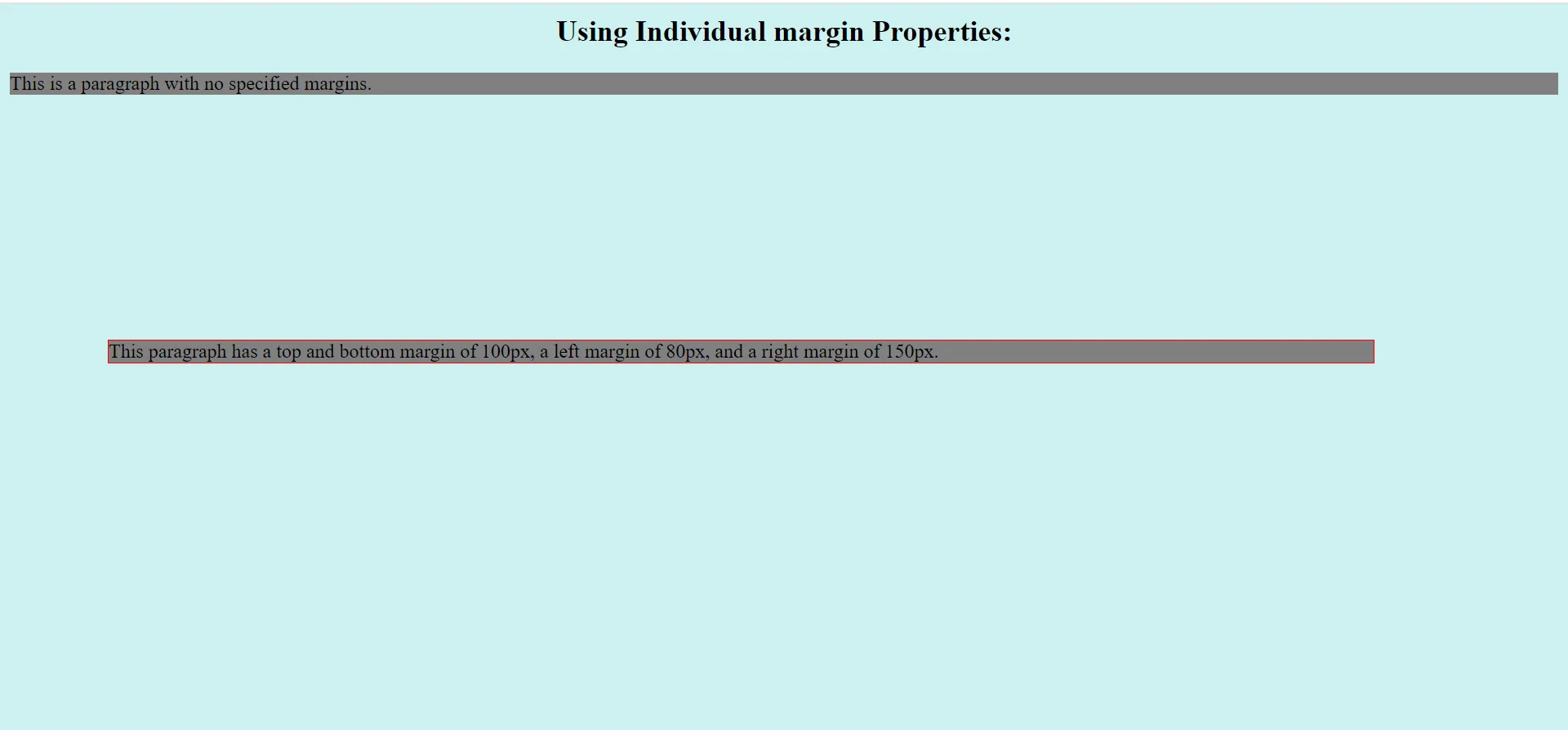
Margin Property Reference
| Property | Description |
|---|---|
| margin | Shorthand for all margins |
| margin-top | Top spacing |
| margin-right | Right spacing |
| margin-bottom | Bottom spacing |
| margin-left | Left spacing |
Important Notes
- Margins create space outside elements.
- Negative margins can move elements.
- Auto margins help center layouts.
- Margins improve UI spacing and readability.
Conclusion
CSS margins are essential for modern layouts. They improve spacing, alignment, structure, and overall website appearance.
Margin Example
<!DOCTYPE html>
<html>
<head>
    <title>CSS Margin</title>
    <style>
        body { background: #f9f9f9; font-family: Arial; }
        .box {
            background: #1a73e8;
            color: white;
            padding: 20px;
            text-align: center;
            width: 300px;
        }
        .a { margin: 10px; }
        .b { margin: 30px 60px; }
        .c { margin: 0 auto; }
    </style>
</head>
<body>
    <div class="box a">Margin: 10px</div>
    <div class="box b">Margin: 30px 60px</div>
    <div class="box c">Centered with margin: 0 auto</div>
</body>
</html>
Code Explanation
margin: 10px: Applies 10px margin to all four sides.margin: 30px 60px: 30px top & bottom, 60px left & right.margin: 0 auto: Centers a block element horizontally — width must be set.- Negative margins: Allowed — pull an element toward another.
Margin Value Patterns
| Values | Meaning | Example |
|---|---|---|
| 1 value | All four sides | margin: 20px |
| 2 values | Top/Bottom | Left/Right | margin: 10px 30px |
| 3 values | Top | Left/Right | Bottom | margin: 5px 10px 20px |
| 4 values | Top | Right | Bottom | Left | margin: 5px 10px 15px 20px |
| Auto | Centers horizontally | margin: 0 auto |
Box Model Reminder
Content
The actual text or image.
Padding
Space inside the border, around content.
Border
The line around padding.
Margin
Space outside the border, between elements.
Common Margin Values
Important Notes
- Margin collapse: Vertical margins of adjacent block elements collapse to the larger of the two.
- Auto for centering:
margin: 0 autoonly works on block elements with a defined width. - Negative margins: Can be used creatively but use sparingly to avoid layout bugs.
- Padding vs margin: Padding is space inside the border; margin is space outside the border.
Real-World Use Cases
Centering Content
Use margin: 0 auto to center cards and containers.
Spacing Sections
Add vertical margins between sections for breathing room.
Grid Gaps
Margins create gaps between cards in a flex/grid layout.
Practice Questions
- Apply a 20px margin to all sides of a div.
- Center a 400px wide card horizontally using margin auto.
- Add a 50px margin to the top of a heading.
- Use 4-value margin syntax to apply different margins on each side.
- Explain margin collapsing with an example.
Frequently Asked Questions
- What is CSS margin: Margin is the space outside an element's border that separates it from neighboring elements.
- Difference between margin and padding: Padding is inside the border (around content); margin is outside the border (between elements).
- How to center a block element: Use
margin: 0 auto;on a block element with a defined width. - Can margin be negative: Yes — negative margins pull elements closer together or overlap them.
Conclusion
CSS margin controls the breathing room around your elements. By mastering shorthand syntax, auto centering, and margin collapse, you can create clean, well-spaced, professional layouts.
CSS All Topics
Continue Learning
Previous
Go to CSS Border Chapter